VS Code
6 minute read
Info
The Motorcortex VS Code extension streamlines development and deployment workflows for target devices.
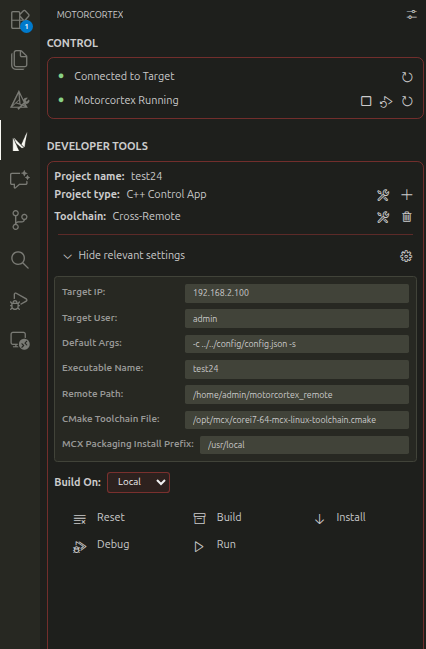
The Motorcortex VS Code extension integrates tooling, debugging, and Motorcortex-specific helpers into Visual Studio Code for streamlined development and system interaction.
With this extension, you can:
- Give a status of the Motorcortex system if it is running or not.
- Start, stop and restart the Motorcortex system from within VS Code.
- Scaffold a ready-to-run Python MCX Client application from a local or Git-based template!
- Easily build a Debian package for deployment from the Python MCX Client application.
- Scaffold a ready-to-run c++ MCX Control application from a template!
- Easily build, run and debug MCX Control applications.
- Give easy access to Motorcortex websites such as, cockpit, GRID, portal and desk tool.
Where to find more information:
- Project resources: Official Website: Motorcortex.io
- Marketplace listing: VS Code Marketplace
- If you need help configuring VS Code for a specific task, ask away on the support forum.
Prerequisites
- Visual Studio Code installed on your development machine.
- Python 3.8+ (required for client scaffold and packaging tasks)
- SSH access to Fitlet devices with Motorcortex for remote control and deployment. See Connect your pc for instructions.
- Git (optional, for cloning templates)
To install the Motorcortex VS Code extension, follow these steps:
-
Open Visual Studio Code.
-
Go to the Extensions view by clicking on the Extensions icon in the Activity Bar on the side of the window or by pressing
Ctrl+Shift+X(Windows/Linux) orCmd+Shift+X(Mac). -
In the search bar, type
Motorcortexto find the Motorcortex extension. -
Click on the
Installbutton next to the Motorcortex extension in the search results. -
Once installed, you may need to reload VS Code to activate the extension. Click the
Reloadbutton if prompted. s If your VSCode is connected to your Microsoft account, you can also install it directly from the Visual Studio Code Marketplace.
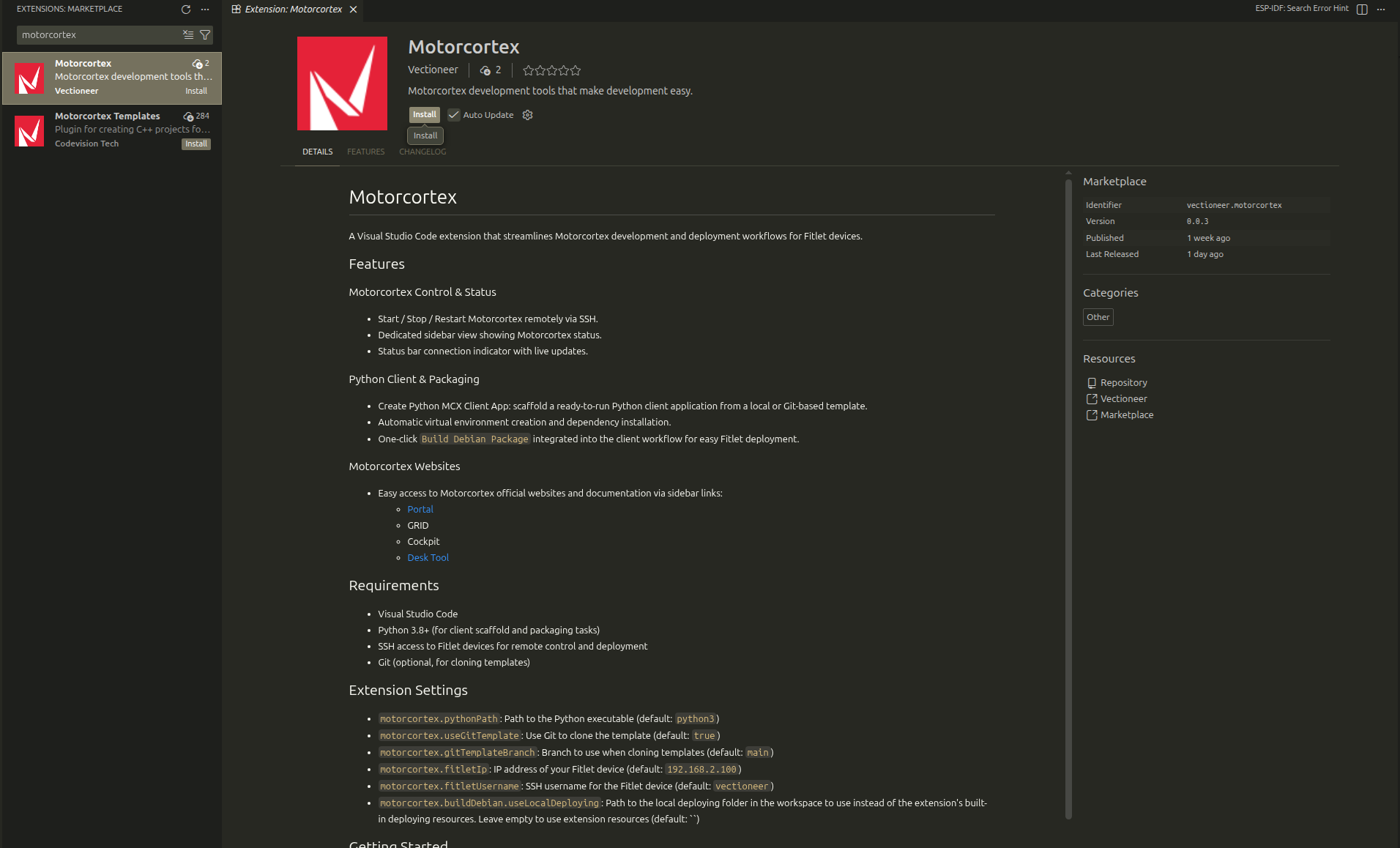
To setup the extension after installation, follow the instructions:
-
Open the Motorcortex extension in the sidebar and click on
Open Settings(top right -> Menu Icon) or pressctrl+shift+pand run the commandMotorcortex: Open Settings. -
Configure the settings according to your Fitlet device and Motorcortex installation. Key settings include:
- fitletIp: The IP address or hostname of your Fitlet device.
- fitletUsername: The SSH username for accessing the Fitlet device.
-
In the Motorcortex extension view, use the
Setup SSH Key Connectionutility to set up SSH access to your Fitlet device. This step is crucial for the extension to interact with the Motorcortex system seamlessly. (The utility can also be run viactrl+shift+pand searching forMotorcortex: Setup SSH Key Authentication)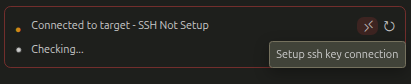
Motorcortex VS Code Extension Features
- Give a status of the Motorcortex system if it is running or not.
- Start, stop and restart the Motorcortex system from within VS Code.
- Scaffold a ready-to-run Python MCX Client application from a local or Git-based template!
- Easily build a Debian package for deployment from the Python MCX Client application.
- Scaffold a ready-to-run c++ MCX Control application from a template!
- Easily build, run and debug MCX Control applications.
- Give easy access to Motorcortex websites such as, cockpit, GRID, portal and desk tool.
Side bar
In the side bar of VS Code, you will find the Motorcortex icon. Clicking on it will open the Motorcortex view, which provides quick access to various Motorcortex tools and features.
Here are the main sections available in the Motorcortex side bar:
- Control: This section provides the status of the fitlet and the Motorcortex system, it also has buttons to start, stop and restart the Motorcortex system.
- Control: This section contains buttons to scaffold Python MCX Client applications and c++ MCX Control applications from templates or setup the current folder as one of those. When a project is setup, it also provides build and debug options for control applications and debian build tools for the Python Client application.
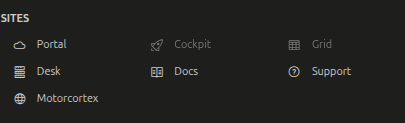
- Websites: This section provides quick links to important Motorcortex web interfaces, including Cockpit, GRID, Portal, and Desk Tool.
Status bar
In the status bar at the bottom of VS Code, you can see the current status of the Motorcortex system. The color and text will change based on whether the system is running, stopped, or in an error state.
Next to the status indicator, there are buttons to start, stop, and restart the Motorcortex system directly from VS Code. Start is visible when the system is not running, and Stop and Restart are visible when the system is running.
Not running

Running

Available Commands
To view the available commands provided by the Motorcortex extension, you can open the Command Palette in VS Code by pressing Ctrl+Shift+P (Windows/Linux) or Cmd+Shift+P (Mac). Then, type Motorcortex to filter the commands related to the Motorcortex extension.
Motorcortex VS Code Extension Settings
Below are the available configuration options for the Motorcortex VS Code extension. These settings can be added to your settings.json or configured via the VS Code settings UI.
| Setting | Type | Default | Description |
|---|---|---|---|
motorcortex.targetIp |
string | 192.168.2.100 |
IP address of the Motorcortex Target device. |
motorcortex.targetUsername |
string | admin |
SSH username for the Motorcortex Target device. |
motorcortex.statusCheckInterval |
number | 10000 |
Interval in milliseconds between status checks (default: 10000ms/10s). Increase this if you experience SSH connection issues. |
motorcortex.enableStatusPolling |
boolean | true |
Enable automatic status polling of the Motorcortex service. Disable if you prefer manual status checks only. |
motorcortex.private_key_path |
string | ~/.ssh/id_rsa_motorcortex |
Path to the private SSH key used for authenticating with the Motorcortex Target device. |
motorcortex.cpp.executable_name |
string | motorcortex_control_app |
Name of the executable for the remote C++ Motorcortex Control Application. |
motorcortex.cpp.crossRemoteToolchain.remote_path |
string | /home/admin/motorcortex_remote |
Remote path on the Motorcortex Target device where the cross-remote toolchain will be set up. |
motorcortex.cpp.default_args |
string | -c ../../config/config.json -s |
Default arguments to pass to the C++ Motorcortex Control Application when running. |
motorcortex.cpp.cmake_toolchain_path |
string | corei7-64-mcx-linux-toolchain.cmake |
Path to the CMake toolchain file for cross-compiling C++ Motorcortex Control Applications. |
motorcortex.cpp.mcx_packaging_install_prefix |
string | /usr/local |
Path prefix for installing MCX Packaging on the Motorcortex Target device. |
motorcortex.python.executable |
string | python3 |
Python executable to use for installing dependencies (e.g., python3, python, or path to specific interpreter). |
motorcortex.python.venv_path |
string | .venv |
Path to the Python virtual environment relative to the workspace root. |
motorcortex.python.requirements_file |
string | requirements.txt |
Path to the requirements file relative to the workspace root. |
motorcortex.python.useLocalDeploying |
string | (empty) | Path to the local deploying folder in the workspace to use instead of the extension’s built-in deploying resources. The folder should contain: makeDeb.py, template.service.in, default_service_config.json, and optionally Dockerfile. Leave empty to use extension resources. |
motorcortex.python.useGitTemplate |
boolean | true |
Use git to clone the latest mcx-client-app-template from the repository instead of using the local template folder. |
motorcortex.python.gitTemplateBranch |
string | main |
The git branch to clone when using git template. Default is ‘main’. |