mcx-datalogger tool
14 minute read
Motorcortex can provide large amounts of data, and Python tools are a convenient way to process it and create plots. mcx-datalogger.py, part of the motorcortex-python-tools package, logs data from a Motorcortex server to a CSV file.
The tabs cover:
- Install — how to install the motorcortex-python-tools package, which contains the mcx-datalogger tool and more.
- Command-line tool — how to use the mcx-datalogger command-line tool.
- Service — how to set up a service that runs mcx-datalogger automatically on boot.
- Data plotter — how to use the mcx-dataplot command-line tool to plot logged data.
- Python — how to use the data logger in your own Python scripts.
- Troubleshooting — what to do when a parameter file or a certificate is rejected.
Motorcortex-python-tools can be installed with pip, and on the latest Motorcortex RTOS images it is already pre-installed.
pip install motorcortex-python-tools
This pulls in motorcortex-python, pandas and matplotlib as dependencies. The automated reporting examples need Jinja2 and WeasyPrint on top, which come with the autotest extra:
pip install motorcortex-python-tools[autotest]
The files are stored in motorcortex-python-tools, where you can also find examples of how to use the data logger and the data plotter.
The files can also be cloned directly from the repository:
git clone https://git.vectioneer.com/pub/motorcortex-python-tools.git
mcx-datalogger.py is a command-line tool for logging data from a Motorcortex server to a CSV file. It offers flexible options for specifying parameters, output files, connection details, and advanced logging features.
Usage
mcx-datalogger.py [-h] -p PARAMETERFILE [-f FILE] [-F FOLDER]
                  [-c COMMENT] [-u URL] [-s CERTIFICATE]
                  [-d DIVIDER] [--trigger TRIGGER]
                  [--triggerinterval TRIGGERINTERVAL]
                  [--triggervalue TRIGGERVALUE]
                  [--triggerop {==,<,>,<=,>=,!=}]
                  [--triggeroffdelay TRIGGEROFFDELAY] [-C] [--noparamdump]
                  [--watchdogpulse WATCHDOGPULSE]
Parameter file
-p/--parameterfile is required, and accepts two JSON formats.
A flat list of paths:
[
  {"path": "root/AxesControl/axesPositionsInput"},
  {"path": "root/AxesControl/axesPositionsActual"}
]
Or a scope export, the format written by the plot tool, in which the paths sit in a subscriptions array:
{
  "subscriptions": [
    {"path": "root/AxesControl/axesPositionsActual",
     "channel": 0, "color": "#109618", "axis": "y1", "hidden": false},
    {"path": "root/AxesControl/axesPositionsActual",
     "channel": 1},
    {"path": "root/AxesControl/axesPositionsInput",
     "channel": 0}
  ]
}
The per-channel fields (channel, color, axis, hidden) are ignored for logging, and repeated paths are de-duplicated: a multi-channel signal is logged once, with all its elements as columns, not once per channel.
Note
Scope exports are accepted from motorcortex-python-tools 1.4.5 onwards. On an older version the logger fails with TypeError: string indices must be integers — see the Troubleshooting tab.
Arguments
-h, --help— Show help message and exit.-p PARAMETERFILE, --parameterfile PARAMETERFILE— Required. JSON file with the parameters to log, in either format described above.-f FILE, --file FILE— Output filename. Defaults to a name based on the current UTC date and time. Ignored when--triggeris used, because each trigger activation opens a new file.-F FOLDER, --folder FOLDER— Output folder for files. Default: the current directory.-c COMMENT, --comment COMMENT— Comment to append to the filename. Spaces are replaced with underscores.-u URL, --url URL— URL to connect to, in the formatwss://[host]:[req_port]:[sub_port]. Credentials may be embedded aswss://user:password@host. Default:wss://controller_ip_address:5568:5567The IP address of your controller. In most cases 192.168.2.100.-s CERTIFICATE, --certificate CERTIFICATE— Certificate for secure connection. Default:mcx.cert.crt-d DIVIDER, --divider DIVIDER— Frequency divider for downsampling. The server sends every N-th sample;1sends at the maximum rate the server supports. Default:10--trigger TRIGGER— Path to the signal monitored for triggering logging.--triggerinterval TRIGGERINTERVAL— Interval in seconds at which the trigger signal is checked. Accepts fractions. Default:0.500--triggervalue TRIGGERVALUE— Value to compare the trigger signal against. The value is converted to a float, so it must be numeric. Default:True, which converts to1.0--triggerop {==,<,>,<=,>=,!=}— Operator for the trigger comparison. Default:==--triggeroffdelay TRIGGEROFFDELAY— Trigger off delay in whole seconds. After the trigger condition becomes false, the logger waits this long before stopping. Default:0-C, --compress— Compress traces using LZMA (creates.xzfiles).--noparamdump— Do not dump parameters to file for each trace. By default a<file>.paramsdump of every server parameter is written beside each trace.--watchdogpulse WATCHDOGPULSE— Parameter to pulse attriggerintervalso the application can tell the logger is still active. The logger writestrue; the server is expected to reset it tofalsecyclically.
Example
-
Connect to your Motorcortex application over SSH, or open Cockpit from your local machine.
-
Go to your home directory, or a folder of your choice where you have write permissions:
cd ~ -
Create a parameter file
params.jsonwith the following content:cat > params.json <<'JSON' [ {"path": "root/AxesControl/axesPositionsInput"}, {"path": "root/AxesControl/axesPositionsActual"} ] JSON -
With Motorcortex running, log the parameters defined above:
mcx-datalogger.py -p params.json -f output.csv -u wss://controller_ip_addressThe logger prints
Logger started, press CTRL-BREAK (CTRL-C) to finish logging ... -
Press
Ctrl-Cto stop.output.csvandoutput.csv.paramsare now in the current directory.
The mcx-datalogger.py tool can be set up to run as a service on a Motorcortex RTOS system. This allows the data logger to start automatically on boot and log data continuously without manual intervention, which is useful for long-term data acquisition tasks.
Setting up mcx-datalogger as a service
-
Create a parameters file in JSON format that specifies the parameters you want to log:
cat > /home/admin/parameters.json <<'JSON' [ {"path": "root/AxesControl/axesPositionsInput"}, {"path": "root/AxesControl/axesPositionsActual"} ] JSON -
Create an output folder:
mkdir /home/admin/logs -
Create a service file for the data logger. Use a text editor to create a file named
mcx-datalogger.service, or another name of your preference, in the/etc/systemd/system/directory:sudo nano /etc/systemd/system/mcx-datalogger.service -
Add the following content to the service file, adjusting the
ExecStartline with the appropriate command-line arguments for your logging needs:[Unit] Description=Motorcortex Data Logger Service After=ethercat.target StartLimitIntervalSec=0 [Service] Type=simple ExecStartPre=/bin/sleep 5 ExecStart=mcx-datalogger.py -p parameters.json -F /home/admin/logs -C WorkingDirectory=/home/admin User=admin Restart=always RestartSec=1 [Install] WantedBy=motorcortex.service -
Reload systemd so it picks up the new unit file:
sudo systemctl daemon-reload -
Enable the service so it starts with Motorcortex:
sudo systemctl enable mcx-datalogger.service -
Restart Motorcortex to apply the changes and start the service:
Warning
Restarting Motorcortex stops the running control application and the EtherCAT master. Make sure the machine is safe to stop before you continue.
sudo motorcortex restart
The service is now running. Because the ExecStart line above passes -C, the traces appear in /home/admin/logs as LZMA-compressed .csv.xz files; drop -C to write plain CSV.
Managing the service
To manage the mcx-datalogger service, use the systemctl command or the Motorcortex Cockpit interface.
With systemctl, check the status of the service with:
sudo systemctl status mcx-datalogger.service
To start, stop, or restart the service, use the following commands:
sudo systemctl start mcx-datalogger.service
sudo systemctl stop mcx-datalogger.service
sudo systemctl restart mcx-datalogger.service
mcx-dataplot.py is a command-line tool for plotting data from a Motorcortex CSV file or LZMA-compressed CSV file. It offers flexible options for specifying signals to plot, axes, output files, and plot customisation. You can also write your own Python scripts to plot data using the data logger module.
Note
mcx-dataplot.py does not work in the terminal of a Motorcortex application, due to a packaging issue. Use it on your own local device instead.
Usage
mcx-dataplot.py [-h] [-l] [--output OUTPUT] [-s SIGNALS [SIGNALS ...]]
              [-x XAXIS] [--drawstyle DRAWSTYLE]
              [--yrange YRANGE [YRANGE ...]] [--nodateconv]
              FILENAME
Arguments
-h, --help— Show help message and exit.-l, --list— List the signals contained in the file and exit. The signals are also listed, and nothing plotted, when-sis omitted.--output OUTPUT— Filename of the output plot file (for exampleplot.png). If not specified, the plot is displayed interactively.-s SIGNALS [SIGNALS ...], --signals SIGNALS [SIGNALS ...]— List of signals to plot. Space-separated for subplots, comma-separated for the same axis, colon-separated for a new y-axis.-s 1,2:3 4:5creates two subplots: the first with signals 1 and 2 on the same axis and 3 on a secondary axis, the second with 4 and 5 on separate axes.-x XAXIS, --xaxis XAXIS— Column index to use as x-axis (0-based). Default:0--drawstyle DRAWSTYLE— Interpolation type for lines, passed through to Matplotlib:default,steps,steps-pre,steps-midorsteps-post. The value is not validated by the tool. Default:default--yrange YRANGE [YRANGE ...]— Range of the y-axis (min max) for the last subplot drawn. If one value, sets the minimum; if two, sets minimum and maximum.--nodateconv— Do not convert the first column to a date. The first column is not converted in any case, so this flag currently has no effect.FILENAME— Required. Input file in CSV format or LZMA-compressed CSV (.xz). The first line holds the signal names, and the first column is interpreted as the x-axis by default.
Example
-
Ensure you have a CSV file with logged data (for example from
mcx-datalogger.py). -
List the available signals in the file:
mcx-dataplot.py -l output.csvA file logged from two three-axis parameters lists as:
0 time 1 root/AxesControl/axesPositionsInput[0] 2 root/AxesControl/axesPositionsInput[1] 3 root/AxesControl/axesPositionsInput[2] 4 root/AxesControl/axesPositionsActual[0] 5 root/AxesControl/axesPositionsActual[1] 6 root/AxesControl/axesPositionsActual[2] -
Plot signals 1 and 2 on the same axis, and 3 on a secondary y-axis in one subplot:
mcx-dataplot.py output.csv.xz -s 1,2:3 --output plotting.png -
Plot multiple subplots: first subplot with signal 1, second with signals 2 and 3 on separate axes, saved to file:
mcx-dataplot.py output.csv.xz -s 1 2:3 --output plotting.png -
Plot with a custom x-axis, y-range and steps interpolation:
mcx-dataplot.py output.csv.xz -s 1:2 -x 0 --yrange 0 100 --drawstyle steps --output plotting.png
The motorcortex_tools package provides the DataLogger class for logging data from a Motorcortex server in your own Python scripts, plus the loadData() and waitFor() helpers. Use DataLogger to log any parameter path on the server and keep the data in memory for further processing. While logging, you can also use the request module to set parameters on the server to interact with the system.
Example of using the DataLogger in Python scripts
This example creates a Python script that uses the DataLogger class to log data from a Motorcortex server and plot it with Matplotlib.
Warning
Step 3 engages the robot and commands joint motion. Clear the workspace and keep an emergency stop within reach before running it.
-
Import the required modules:
# import the DataLogger class from motorcortex_tools import DataLogger # import numpy import numpy as np # import matplotlib (optional) import matplotlib.pyplot as plt # import time module (required to use sleep()) import time -
Create a DataLogger object and start the logger:
# Create a DataLogger object and set the options
logger = DataLogger('wss://controller_ip_address', paths = ['root/AxesControl/axesPositionsActual'], divider=10, certificate='mcx.cert.crt')
# Start the logger
logger.start()
This example plots the actual positions of all axes. The
pathsargument is a list of parameter paths to log. Thedivideroption sets the logging frequency; here the logger logs every 10th sample. Thecertificateoption specifies the certificate file to use for secure connections.Because
start()is called withoutopenFileAndWriteHeader()first, the samples are kept in memory and reachable throughlogger.traces. CallopenFileAndWriteHeader()beforestart()to stream to a file instead; in that case nothing is stored in memory andlogger.tracesstays empty. -
Do something while the logger is running:
reply = logger.req.setParameter("root/Logic/stateCommand", 2).get()  # Engage the robot
print(f"Set to engaged state: {reply}")
time.sleep(2)
reply = logger.req.setParameter("root/Logic/modeCommand", 3).get()
print(f"Set to manual joint mode: {reply}")
time.sleep(2)
for _ in range(10):
    logger.req.setParameter("root/ManipulatorControl/hostInJointVelocity", [0.1, 0.0, 0.0, 0.0, 0.0, 0.0]).get()
    time.sleep(1)
logger.req.setParameter("root/Logic/stateCommand", 0).get()  # Switch the robot off
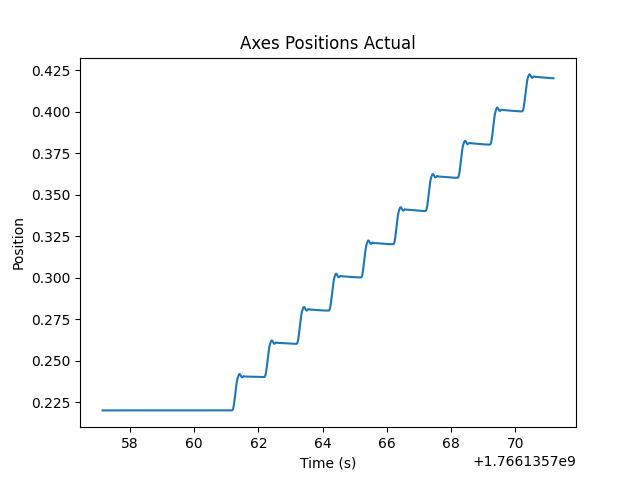
This engages the robot, sets it to manual joint mode, and then moves the first joint with a velocity of 0.1 for 10 seconds.
-
Stop the logger and close the connection:
logger.stop()
logger.close()
Both are safe to call more than once, so the same cleanup can run on an interrupt and on normal exit.
-
Plot the results:
# get trace data
trace = logger.traces['root/AxesControl/axesPositionsActual']
t = np.array(trace['t'])
y = np.array(trace['y'][0])
plt.plot(t, y)
plt.title('Axes Positions Actual')
plt.xlabel('Time (s)')
plt.ylabel('Position')
plt.savefig('plot.png')
This uses the time traces of the logger object to create a plot of the axes positions over time. The time is stored in the
tkey of the trace dictionary, and the values are stored in theykey, one list per element of the parameter.The resulting plot should look something like this:
Loading a logged file with loadData()
loadData() reads a file written by mcx-datalogger.py — plain or LZMA-compressed — into a pandas DataFrame, so a trace can be analysed long after it was recorded and from any Python process:
from motorcortex_tools import loadData

data = loadData('output.csv.xz')
print(data.columns)
print(data['root/AxesControl/axesPositionsActual[0]'].max())
.xz inputs are decompressed transparently. Pass nodateconv=False to convert the first column from a timestamp to a datetime.
Waiting for a condition with waitFor()
waitFor() blocks until a parameter satisfies a comparison, which is what makes a scripted test wait for the machine rather than for a fixed sleep:
from motorcortex_tools import waitFor

if not waitFor(logger.req, 'root/Logic/:ctrlToState/isAtEngaged', timeout=10):
    raise RuntimeError('Robot did not reach the engaged state')
It takes a request object, the parameter path, and optionally value (default True), index for an element of an array parameter, timeout in seconds (default 30), testinterval between checks (default 0.2), and operat, one of ==, !=, <, <=, > or >=. It returns True when the condition is met and False on timeout.
The automatic_testing_examples folder of the
motorcortex-python-tools repository combines all three into a full scripted test.
The failures below come up when a parameter file exported from the plot tool is fed to a logger that predates scope-export support, or when the default certificate name does not match the file you have.
TypeError: string indices must be integers
Support for the scope-export parameter file arrived in motorcortex-python-tools 1.4.5. An older mcx-datalogger.py iterates the top-level JSON value directly, so an export — which is an object, not a list — yields the key string "subscriptions", and indexing a string with ["path"] fails while parsing the file, before any connection is made:
Traceback (most recent call last):
  File "/usr/bin/mcx-datalogger.py", line 187, in <module>
    main()
  File "/usr/bin/mcx-datalogger.py", line 131, in main
    parameters.append(i["path"])
TypeError: string indices must be integers
There are three ways out, in order of preference.
Update the system image. The mcx-datalogger.py it ships then accepts both formats, and nothing else has to change.
Update the package on the target. Where the target reaches the internet:
sudo pip3 install --upgrade motorcortex-python-tools
Where it does not, download on a machine that does, copy the files across, and install offline:
pip3 download motorcortex-python-tools -d mcx-tools-pkgs
scp -r mcx-tools-pkgs user@target:/tmp/
Then on the target:
sudo pip3 install --upgrade --no-index --find-links /tmp/mcx-tools-pkgs motorcortex-python-tools
pip3 download fetches the dependencies too, so the install needs no network. Dependency wheels such as pandas are built per platform and Python version, so if the download host does not match the target, add --no-deps to both commands and fetch only the tools package, which is pure Python. The target usually already has the dependencies from its own image, and this keeps the transfer small.
Convert the file. Where the target cannot be updated at all, rewrite the export into the flat format with mcx-traces-convert.py. It needs only the standard library and no server connection, so run it on your own machine and copy the result over:
./mcx-traces-convert.py traces.json -o parameters.json
scp parameters.json user@target:~/
Then on the target:
mcx-datalogger.py -p parameters.json
The converter de-duplicates repeated paths and drops formula traces. Without -o it writes to stdout.
Parameter “formulas/…” not found in tree!
A scope export may contain formula traces — signals the scope computes locally from an expression rather than reading from the server:
{"path": "formulas/Test", "channel": null,
 "formula": "${root/.../cameraPose[0]}-${root/.../cameraPose[1]}"}
The server does not publish these, so the logger cannot subscribe to them. The message is a warning, not an error: logging continues with the remaining signals and the formula column is simply absent. Recompute it from the logged columns afterwards, or remove the entry from the parameter file to silence the warning.
mcx.cert.crt not found
The default for -s/--certificate is mcx.cert.crt, but the motorcortex-python-tools repository ships mcx.cert.pem. Pass the certificate explicitly when using the file from the source tree:
mcx-datalogger.py -p parameters.json -s mcx.cert.pem