Exploring parameters
5 minute read
Once connected, the Parameters panel shows the controller’s whole parameter tree: every input, output and configuration value the control program exposes, live.
Finding a parameter
Controllers publish far more than people expect, and the tree is deep. Scrolling for a signal is the slow way; the
filter with a * in it is the fast one.
-
Press Ctrl+F to jump to the filter box.
-
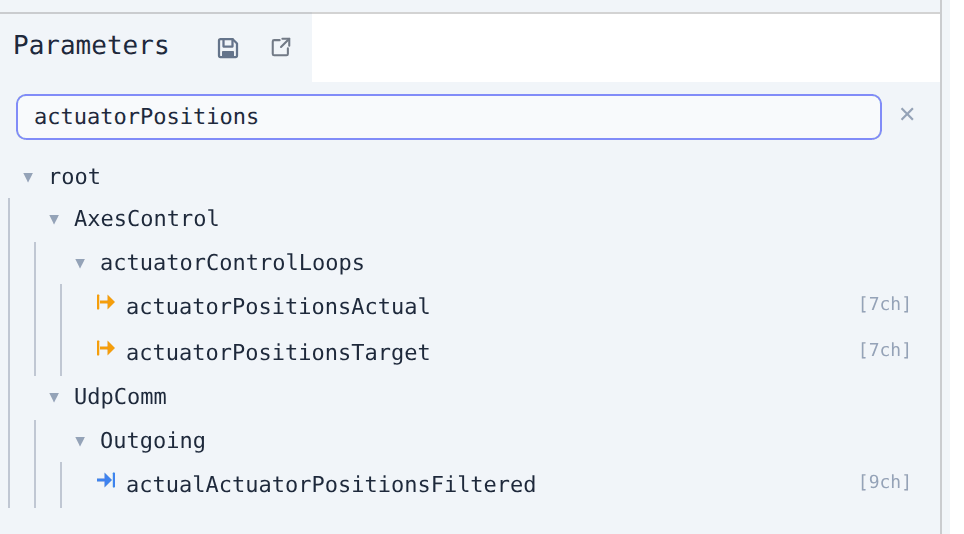
Type the leaf name you are after,
jointPositionsActual.Every parameter with that name survives, along with the folders leading down to each one. On a two-armed machine that is still several hits.
-
Narrow it by naming the branch too, with
*standing in for everything between:handcontrollerRight*jointPositionsActual -
Click the parameter’s name to expand the
[7ch]array intoch0 … ch6, each with its own live value.
From here, double-click the parameter to plot it, or read on to write to it.
Reference
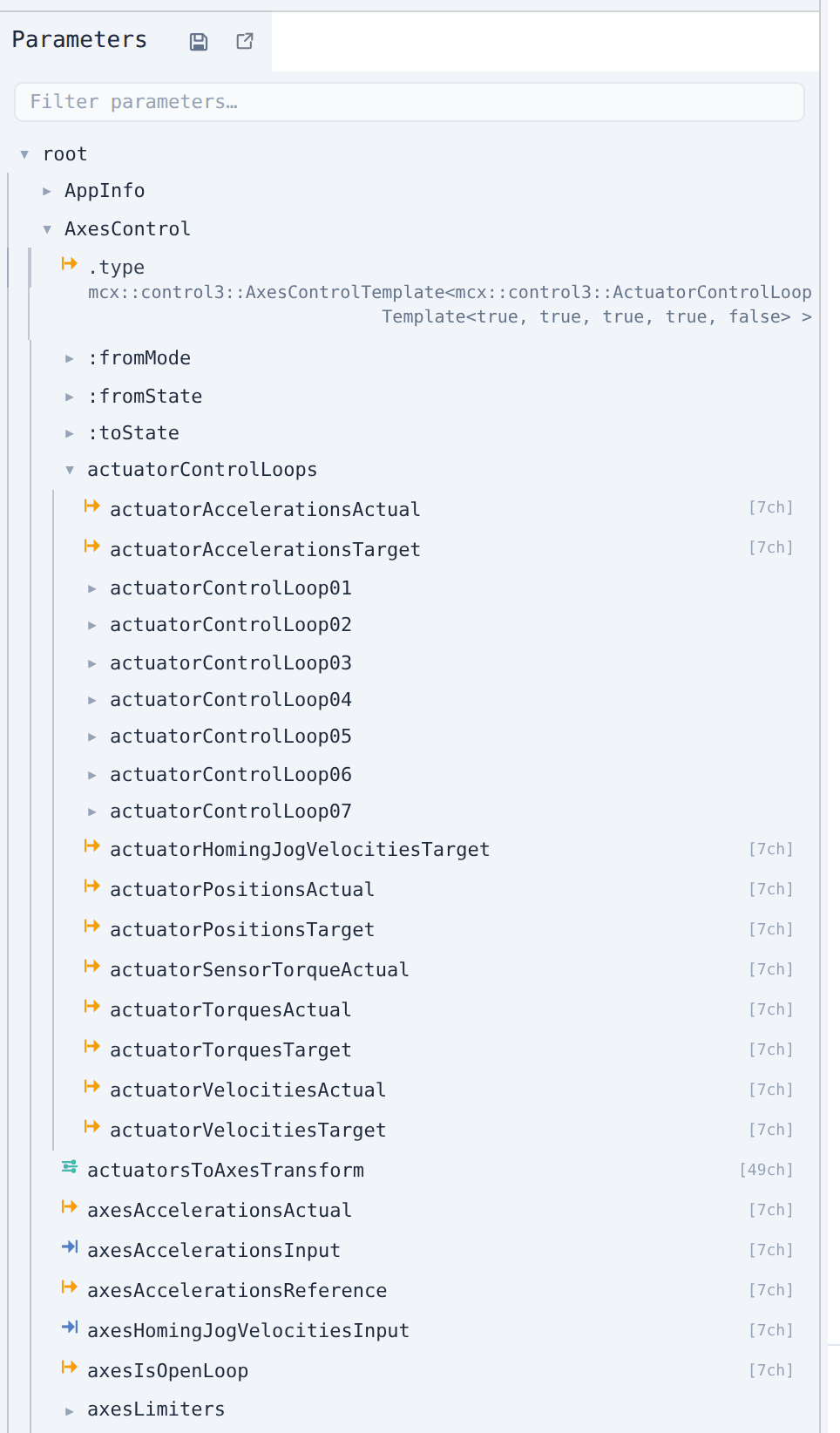
- Click a folder (▶ / ▼) to expand or collapse it.
- Each leaf shows its live value on the right, and a writable leaf also has an inline input.
- Hover a row to see its full path as a tooltip.
Values of the parameters currently on screen refresh twice a second. The tree is a reader, not a recorder. For anything you want to watch over time, plot it.
Parameter types
The colour of the icon in front of a leaf is its role in the control program:
| Icon colour | Type | Meaning |
|---|---|---|
| Blue | INPUT | Input of a control block |
| Amber | OUTPUT | Output of a control block |
| Green | PARAMETER | Configuration value |
| Purple | PARAMETER_VOLATILE | Configuration value, not stored on disk |
| Teal | PARAMETER_PERSISTENT | Configuration value, stored on disk |
Non-numeric parameters (strings, enums, byte arrays) are listed and can be read, but cannot be plotted.
Array parameters
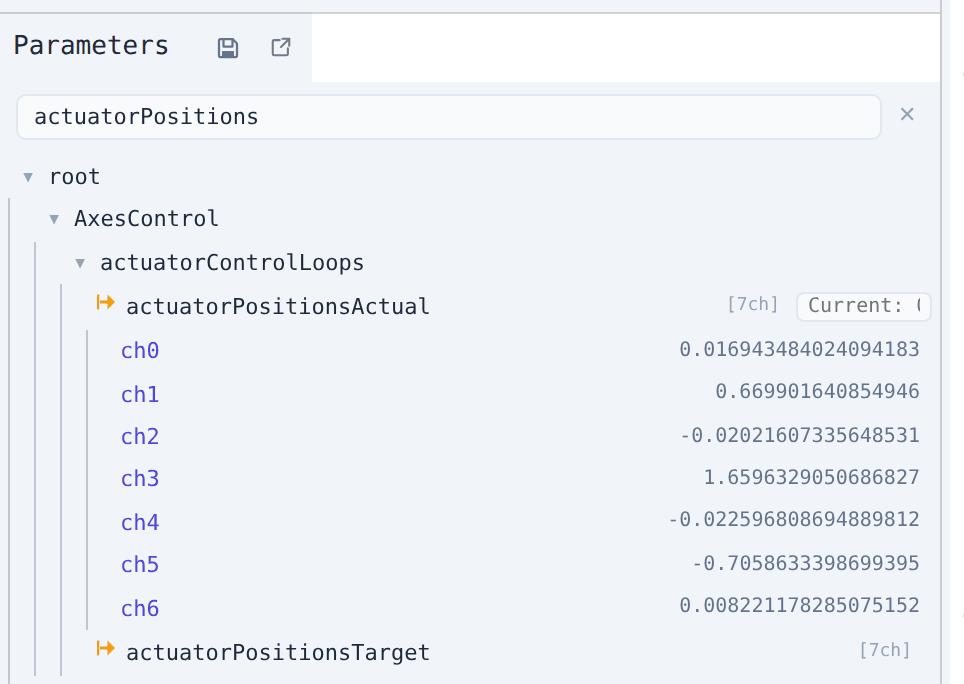
An array parameter carries an [Nch] badge. Click its icon or name to expand it into channels ch0 … chN-1, each
with its own value and input.
While a custom-signal editor is open
A plain click in the tree inserts a reference into the expression instead of expanding or selecting. See Custom signals.
- Press Ctrl+F (Cmd+F) to jump to the filter box.
- Typing filters by name; only matching leaves and the folders leading to them stay visible, already expanded.
- Click ✕ to clear the filter.
The wildcard is what makes it usable
* matches across path segments, so you can name a leaf and the branch it lives on without typing what is between
them. On a controller with a left and a right arm:
| Filter | Matches |
|---|---|
jointPositionsActual |
every parameter with that name, on both arms |
handcontrollerRight*jointPositionsActual |
only the right arm’s, wherever it sits in the tree |
01*Enable |
every Enable under anything numbered 01 |
Matching is case-insensitive.
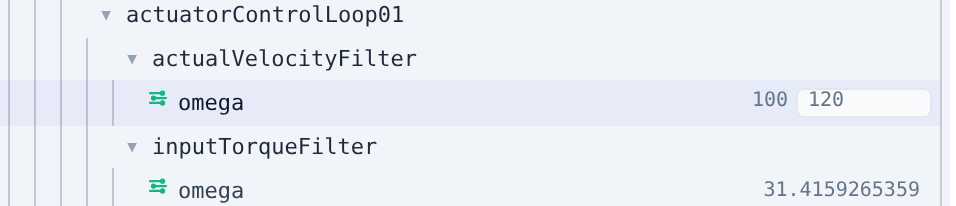
Writable parameters (INPUT, OUTPUT and the PARAMETER variants) reveal an inline input beside the live value when you hover or focus the row. Its placeholder shows the value the parameter holds now.
Warning
A write goes straight to a running machine and can move an axis. Check the path and the value before pressing Enter.
- Click the input.
- Type a value. Math expressions are evaluated:
2*pi,1/60,0.5+sin(0.3)all work. - Press Enter to write. The input flashes green on success, indigo on failure.
- Press Escape to leave the value untouched.
A plotted signal carries the same input on its row in the Active panel and in the details pane there, so a parameter you are already watching can be written without finding it in the tree again.
Whole arrays at once
For an array leaf you can write one channel at a time, or write the whole array in the parent input as a list:
[0, 1.5, 2] or 0 1.5 2. The list must hold exactly as many values as the array has channels.
Locking a parameter
A lock (force overwrite) holds a parameter at the value you wrote, overriding whatever the control program writes to it. Locked rows are highlighted, and the same lock shows on the signal in the Active panel.
- Lock: right-click the parameter → Lock, in the tree, in Active or in the plot legend; or use the lock button in the Active details pane.
- Unlock: right-click → Unlock, or click the highlighted lock button again.
Locks live in the controller session, so disconnecting releases them. That is a safety net, not a strategy. A lock you forget about is a parameter the control program has silently lost.
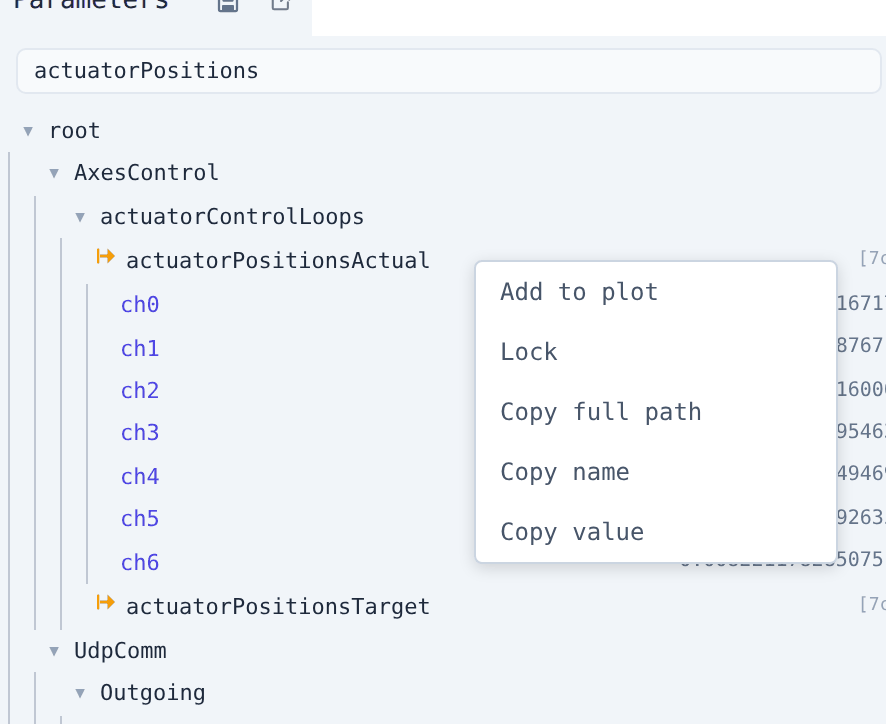
| Action | Description |
|---|---|
| Add to plot / Delete from plot | Toggle this leaf (or channel) as a trace |
| Add to plot (array parent) | Add every channel of the array at once; the label reads Delete from plot once they all are |
| Lock / Unlock | Force the parameter at its current value, or release it |
| Copy full path | Copy the root/… path to the clipboard |
| Copy name | Copy just the leaf name |
| Copy value | Copy the current value, the whole array for an array parameter |
| Get info | Show what the controller reports about the parameter, where it has anything to report |
Persisting the parameter set
The save button in the Parameters tab header, or Ctrl+S, tells the controller to write its current parameter set to disk so it survives a restart.
The button is disabled while disconnected, turns green on success, and red when the controller refuses the save.
Warning
This persists every parameter as it stands now, including values you changed while experimenting. Check the tree before saving.