Run a virtual machine
8 minute read
A virtual machine runs MCX-RTOS on your own PC, so you can try Motorcortex without controller hardware. It has no EtherCAT devices, so the application must run in simulation mode. On Ubuntu you run it in QEMU; on Windows in VirtualBox.
Before you start
- The image for your virtual machine, downloaded from the store: see Download. QEMU takes the Intel disk image, VirtualBox the
.ovafile. - A PC whose processor supports virtualization, with at least 8 GB of memory.
Set up the virtual machine
Select the operating system of your PC:
QEMUQEMU is a free program that runs a virtual machine. With KVM, the virtualization built into the Linux kernel, the virtual machine runs at close to the speed of your PC. starts the Intel disk image as a virtual machine. Three scripts do the work: one starts QEMU, and two set up and remove the network between your PC and the virtual machine.
How the virtual machine reaches your PC
QEMU connects the virtual machine to a TAP deviceA TAP device is a virtual network port on your PC. What QEMU sends into it comes out of the virtual machine’s network card, and the other way round.
, tap0. The script network-up.sh adds tap0 to a bridge, br0, and gives your PC the address 192.168.2.15 on it. The controller in the virtual machine has the fixed address 192.168.2.100, so your PC reaches it at controller_ip_addressThe IP address of your controller. In most cases 192.168.2.100. without further network settings. When QEMU stops, network-down.sh removes the bridge again.
If your PC also has a network adapter on 192.168.2.x, for example to a real controller, disconnect it while the virtual machine runs. Otherwise your PC does not know which of the two to use.
Check that your PC supports virtualization
The scripts need Ubuntu 20.04 or later; they are tested on 22.04 and 24.04. The virtual machine takes 4 GB of memory and four processor cores.
-
Check that the processor supports virtualization. A number greater than 0 means it does:
egrep -c '(vmx|svm)' /proc/cpuinfo -
Check that KVM can be used.
kvm-okcomes with thecpu-checkerpackage:sudo apt install cpu-checker kvm-okINFO: /dev/kvm exists KVM acceleration can be usedIf it cannot be used, switch on Intel VT-x or AMD-V in the BIOS of your PC.
Install QEMU
Install QEMU with KVM, and OVMF, the UEFI firmware the image starts with:
sudo apt update
sudo apt install -y qemu-system-x86 qemu-kvm ovmf bridge-utils net-tools
Get the scripts
-
Download the three scripts into the folder that holds the Intel disk image:
- start-qemu-mcx-image.sh: starts QEMU
- network-up.sh: sets up the bridge
- network-down.sh: removes the bridge
-
Make them executable:
chmod +x start-qemu-mcx-image.sh network-up.sh network-down.sh
Start the virtual machine
-
In that folder, start the script with the name of the image file:
./start-qemu-mcx-image.sh mcx-image-mcx-intel.rootfs-2026.05.1-0-g34c0e28-20260508091432.wicThe script uses
sudo, so it asks for your password. If only a compressed.wic.xzor.wic.gzfile is there, the script unpacks it first and keeps the compressed file. -
The virtual machine starts in the same terminal: QEMU shows its console there instead of in a window.
-
When MCX-RTOS has started, log in from a second terminal on your PC, with the password
vectioneer:ssh admin@controller_ip_address
To stop the virtual machine, run sudo poweroff in it, or press Ctrl+A and then X in the QEMU terminal.
What the QEMU command does
start-qemu-mcx-image.sh ends with this command:
sudo qemu-system-x86_64 \
    -drive file="$BASE_NAME",format=raw,if=virtio \
    -m 4096 \
    -bios /usr/share/ovmf/OVMF.fd \
    -cpu Skylake-Client \
    -smp cores=4 \
    -enable-kvm \
    -netdev tap,id=net0,ifname=tap0,script=network-up.sh,downscript=network-down.sh \
    -device virtio-net-pci,netdev=net0 \
    -nographic
| Option | What it does |
|---|---|
sudo |
TAP networking needs root rights |
qemu-system-x86_64 |
The QEMU emulator for 64-bit Intel and AMD processors |
-drive file=…,format=raw,if=virtio |
The disk image as a raw disk, on a fast virtio disk controller |
-m 4096 |
4096 MB of memory for the virtual machine |
-bios /usr/share/ovmf/OVMF.fd |
Start with UEFI firmware instead of a legacy BIOS |
-cpu Skylake-Client |
Show the virtual machine a Skylake-generation Intel processor |
-smp cores=4 |
Four processor cores |
-enable-kvm |
Use KVM, so the virtual machine runs at close to native speed |
-netdev tap,… |
The network through tap0, set up by network-up.sh and removed by network-down.sh |
-device virtio-net-pci,netdev=net0 |
A virtio network card on that network |
-nographic |
No window: the console runs in the terminal |
VirtualBox runs the Motorcortex appliance, the .ova file from the store. The virtual machine talks to your PC over a host-only networkA host-only network is a virtual network between your PC and its virtual machines only. It does not reach other computers.
, which you set up once.
Install VirtualBox
-
Download VirtualBox for Windows from virtualbox.org and open the
.exefile. -
In the setup wizard, press
Next.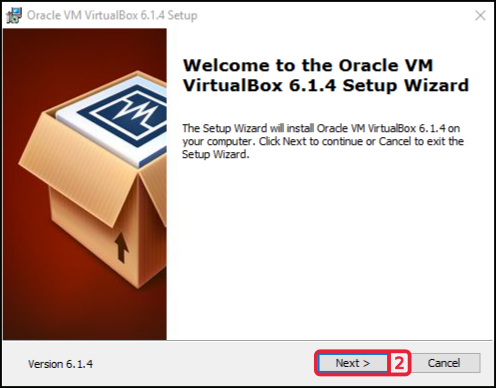
-
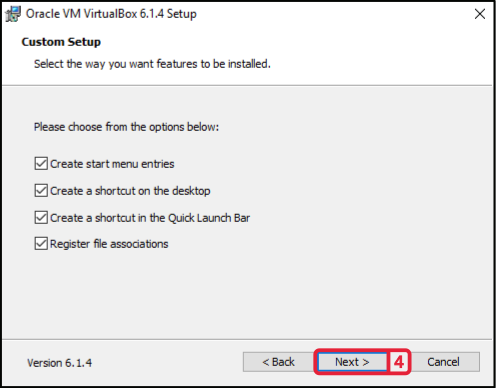
Press
Nexttwice, to keep the default features, install location and shortcuts.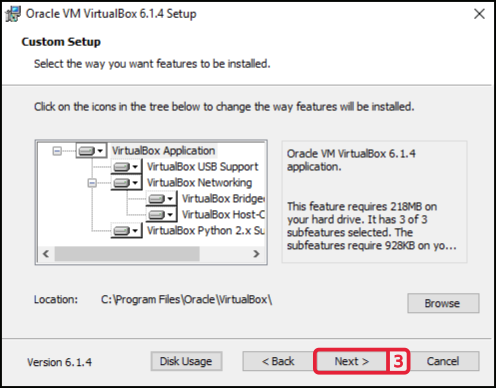
-
The wizard warns that your network connections are interrupted for a moment. Press
Yes.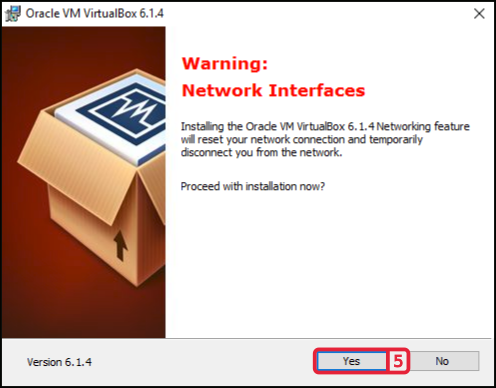
-
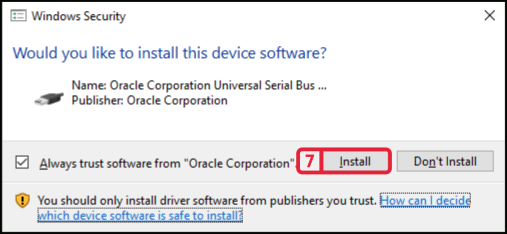
Press
Install. When Windows asks whether to install the device software, pressInstall.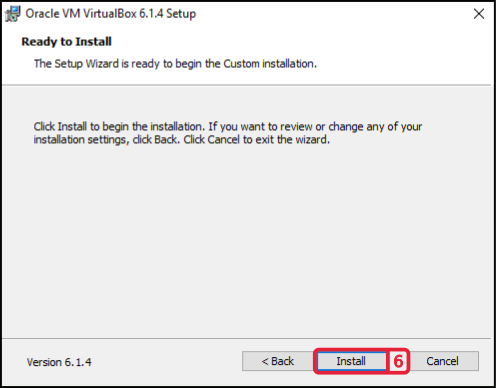
-
Press
Finish.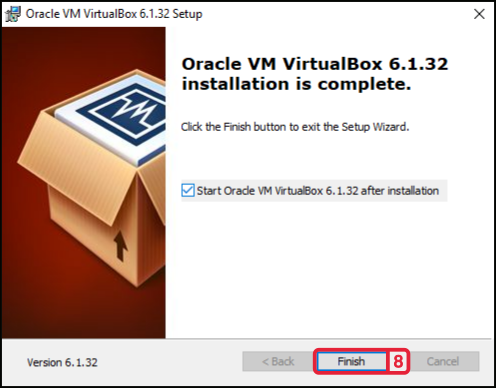
Add the host-only network
-
Open VirtualBox, go to
Fileand openHost Network Manager....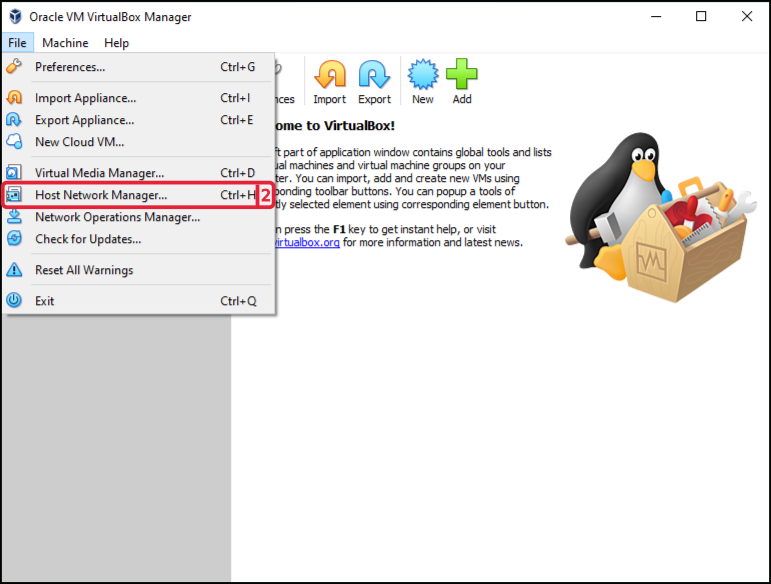
-
Press
Create. VirtualBox adds aVirtualBox Host-Only Ethernet Adapter.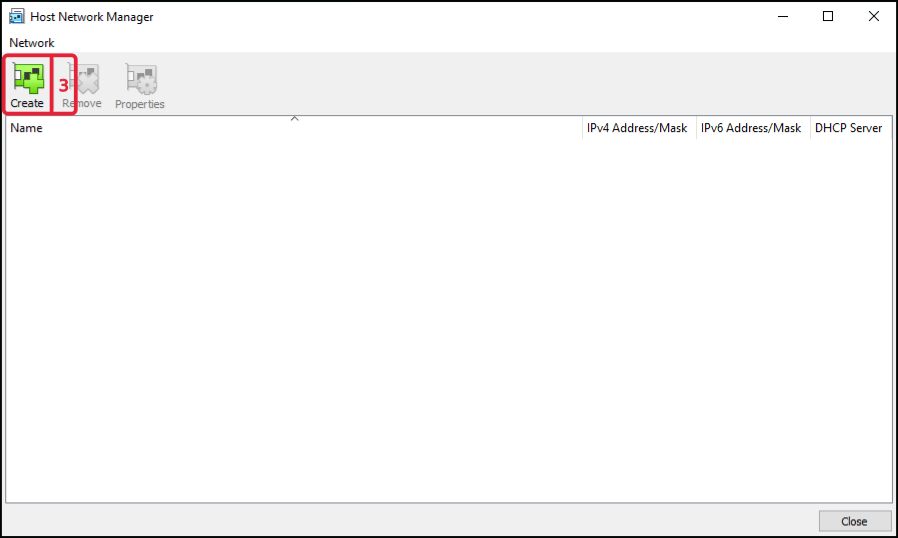
-
In the
DHCP Servercolumn, tickEnablefor the new adapter and pressApply.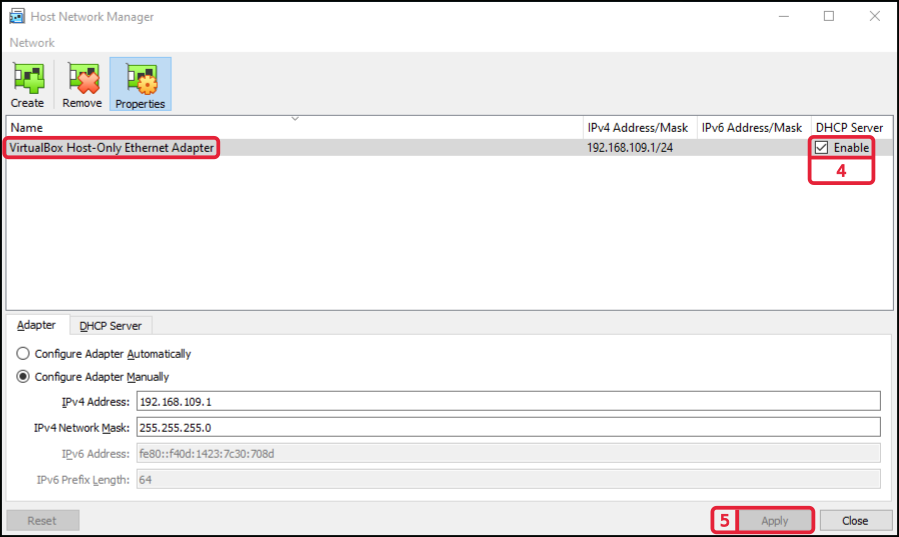
Change the host-only adapter settings in Windows
-
In Windows, open
Network Connections. -
Right-click the connection of the
VirtualBox Host-Only Ethernet Adapterand chooseProperties. -
Untick
VirtualBox NDIS6 Bridged Networking Driverand pressOK.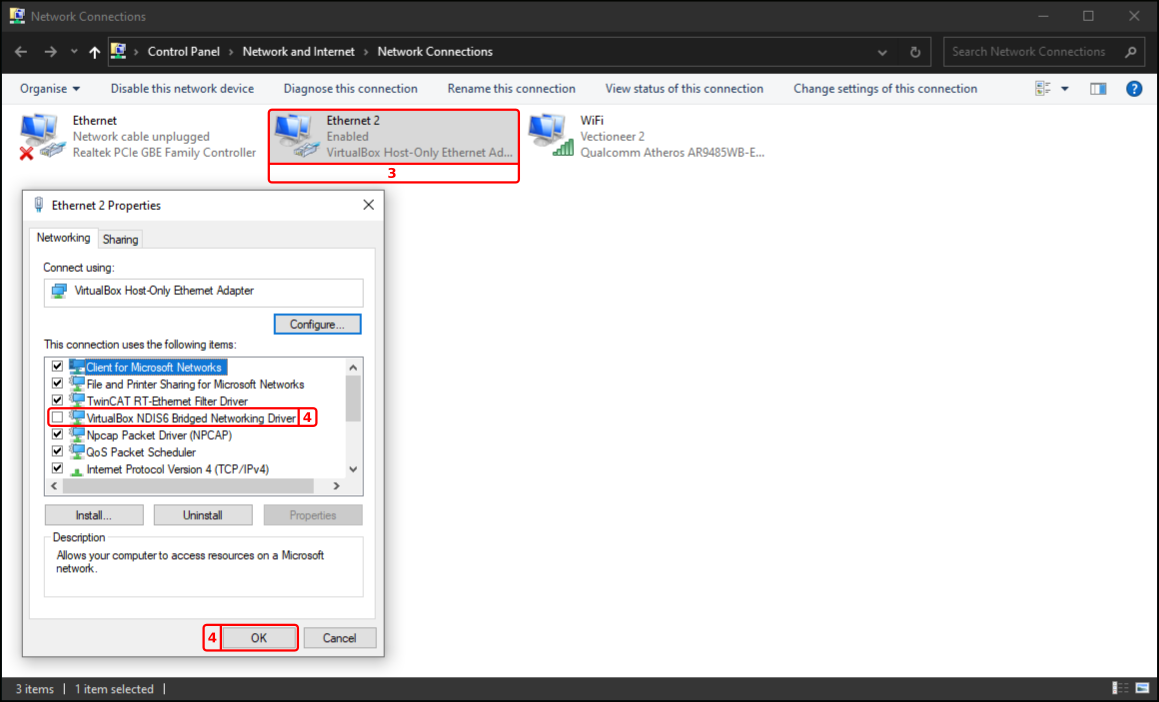
-
Restart the connection: right-click it, choose
Disable, thenEnable.
Import the Motorcortex appliance
-
In VirtualBox, go to
Fileand chooseImport Appliance.... -
At
File, choose the.ovafile you downloaded and pressNext.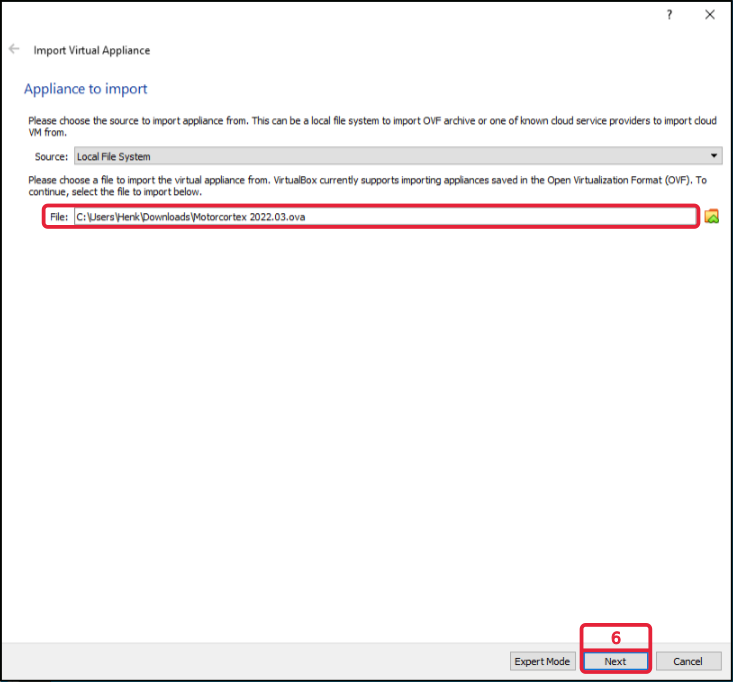
-
In
Appliance settings, pressImport.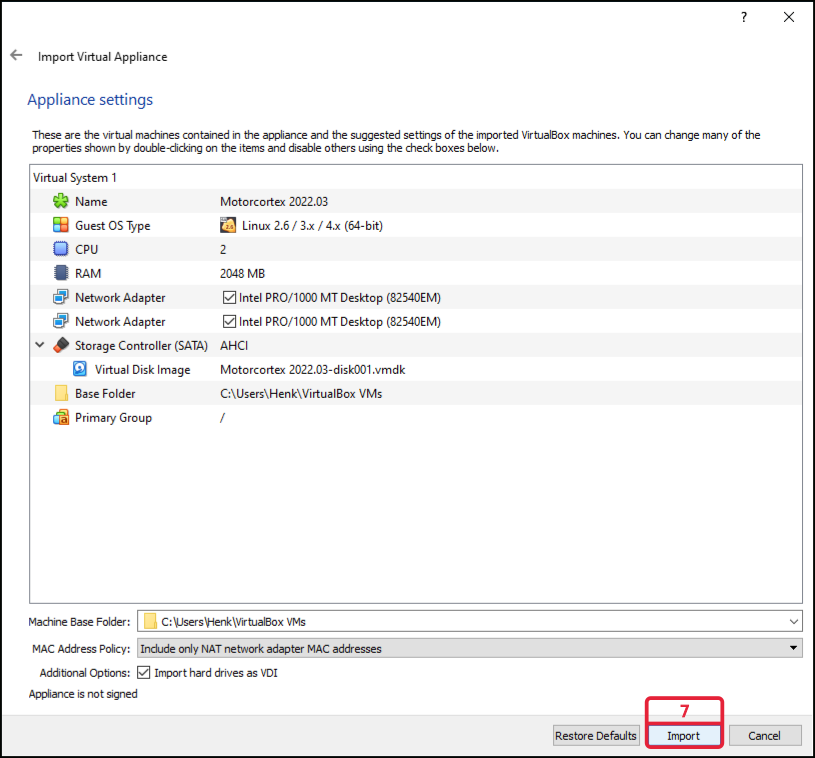
-
Connect the virtual machine to the host-only network. Select it, press
Settingsand openNetwork. OnAdapter 1, setNametoVirtualBox Host-Only Ethernet Adapterand pressOK.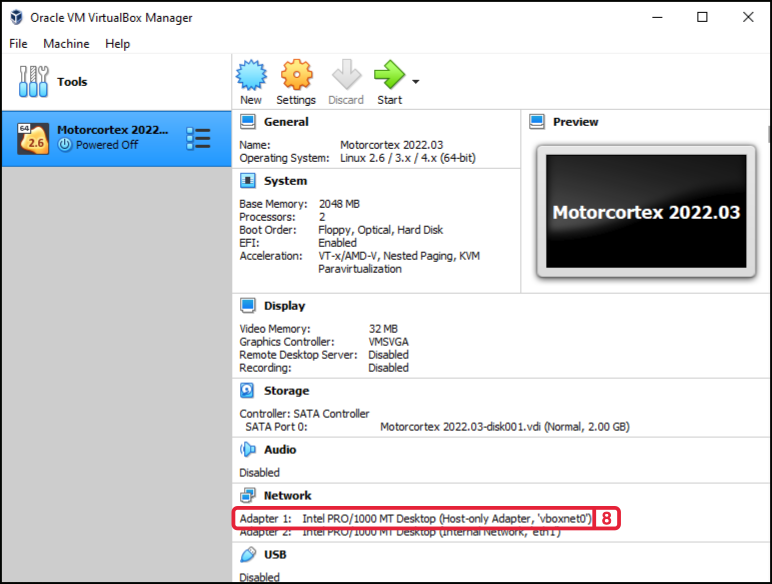
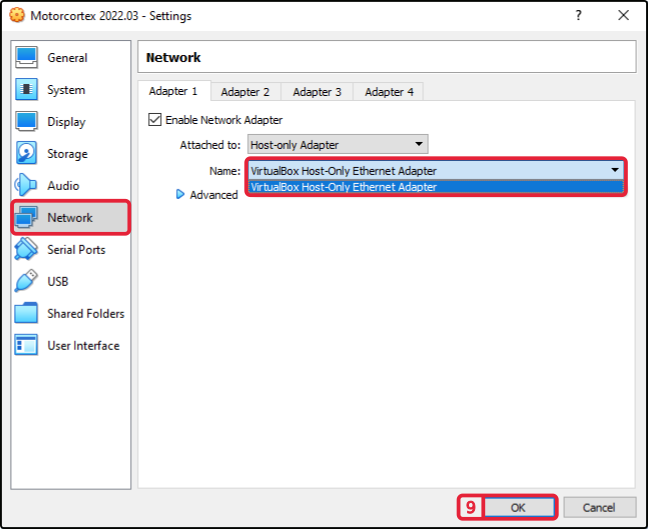
If the name does not show up in the list, restart VirtualBox and try again.
Start the virtual machine
-
In VirtualBox, select the Motorcortex virtual machine and press
Start. It takes a few seconds to start.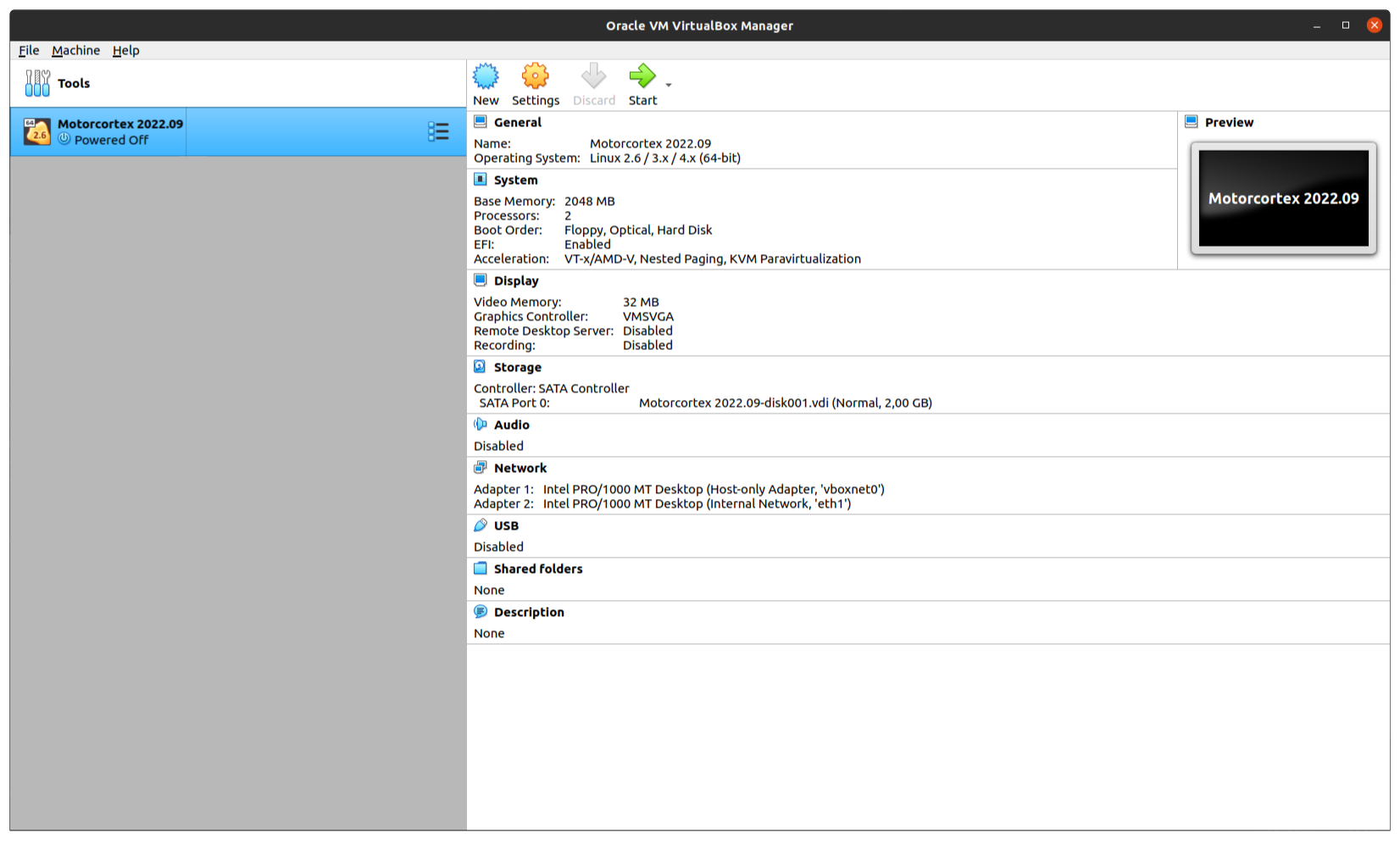
-
The console shows the address of the virtual machine next to
eth0, for example192.168.56.111.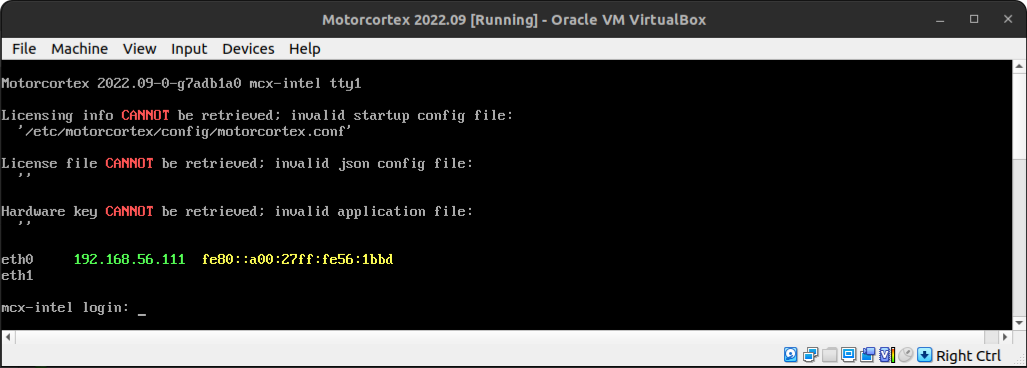
-
Log in with the user
adminand the passwordvectioneer.
This address takes the place of controller_ip_addressThe IP address of your controller. In most cases 192.168.2.100. everywhere: in your browser, over SSH and when you deploy packages. Check the connection from a terminal on your PC, with the address from your console:
ssh admin@192.168.56.111
The virtual machine does not start: VERR_PATH_NOT_FOUND
VirtualBox can fail to start the machine with this error:
Failed to load the NVRAM store from the file (VERR_PATH_NOT_FOUND).
Can't attach Nvram Storage driver (VERR_PATH_NOT_FOUND).
Result Code:
E_FAIL (0X80004005)
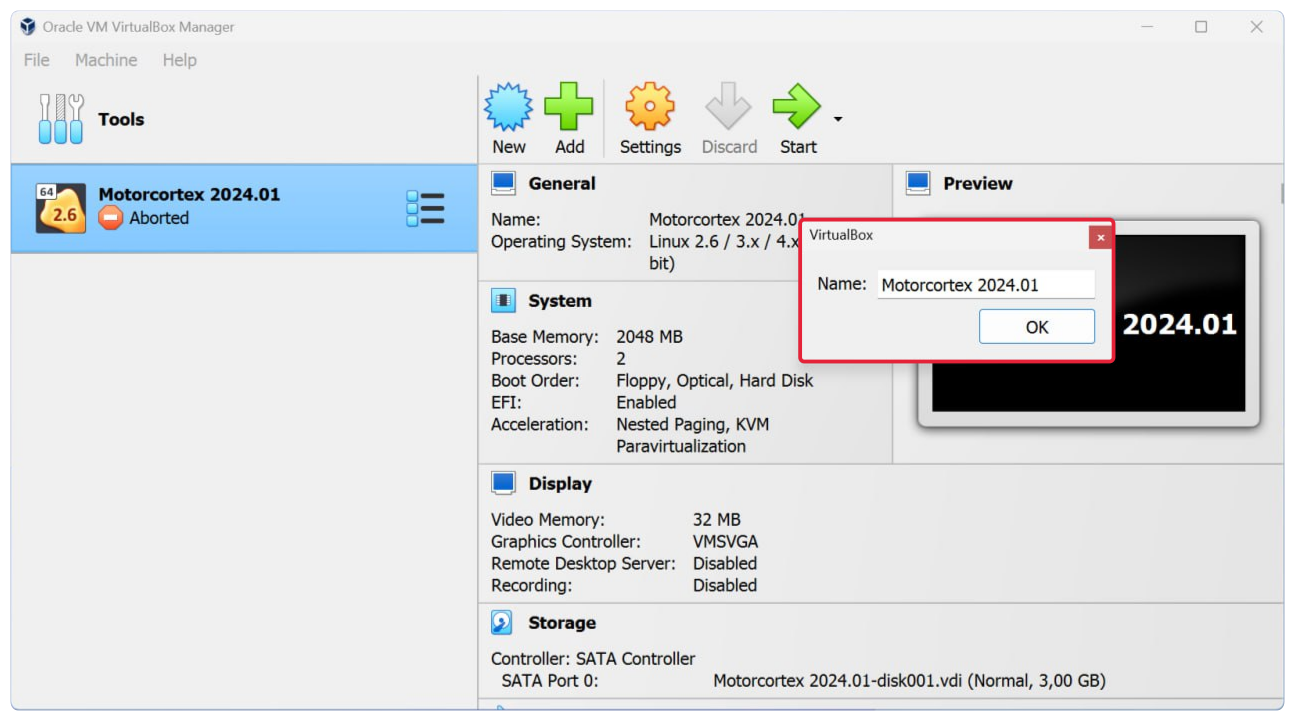
Rename the virtual machine, for example from Motorcortex 2024.01 to Motorcortex 2024, and start it again.
This is the older way to run MCX-RTOS on Ubuntu. QEMU is the recommended one. VirtualBox runs the Motorcortex appliance, the .ova file from the store, and talks to your PC over a host-only networkA host-only network is a virtual network between your PC and its virtual machines only. It does not reach other computers.
.
Install VirtualBox
-
Download the VirtualBox
.debpackage for your Ubuntu version from virtualbox.org and install it. -
Open VirtualBox. Go to
File›Toolsand openNetwork Manager.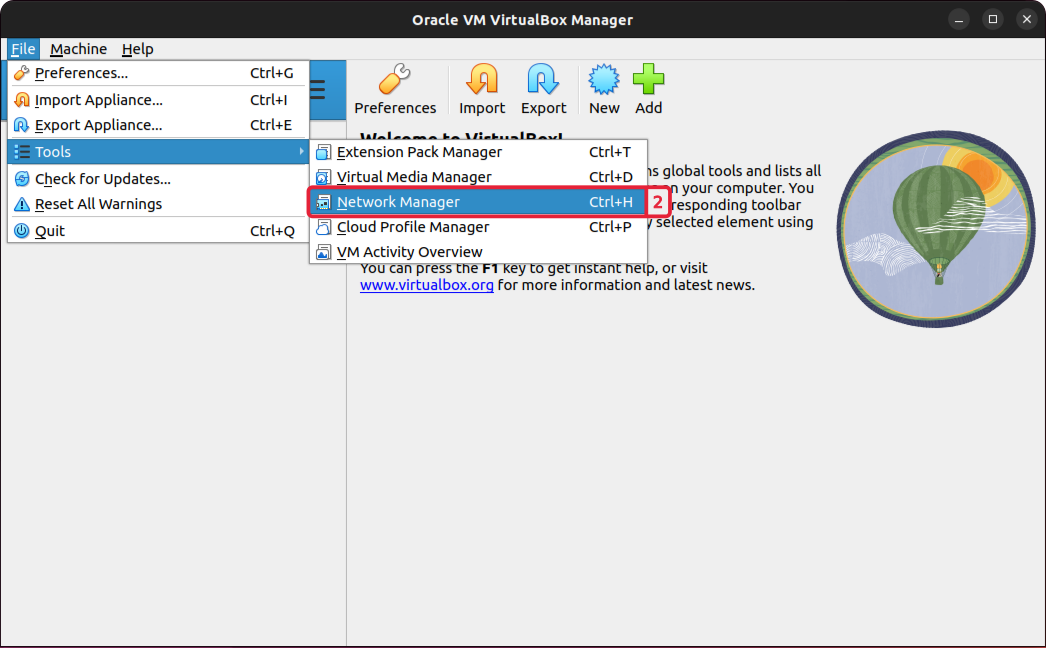
-
Press
Create, thenProperties. -
On the
DHCP Servertab, tickEnable Serverand pressApply.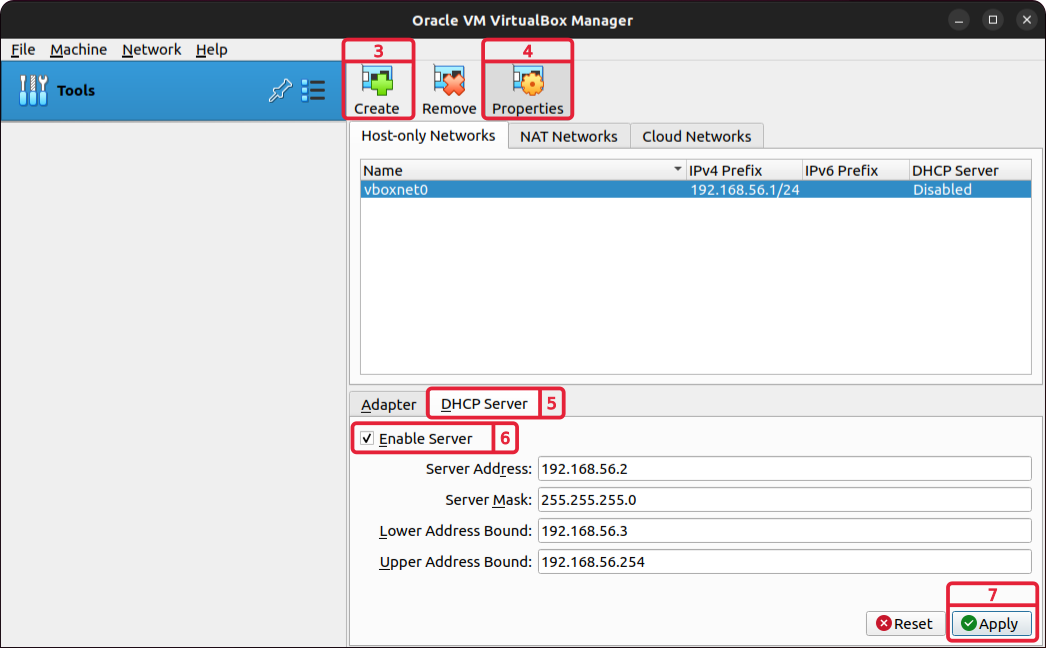
Import the Motorcortex appliance
-
In VirtualBox, go to
Fileand chooseImport Appliance....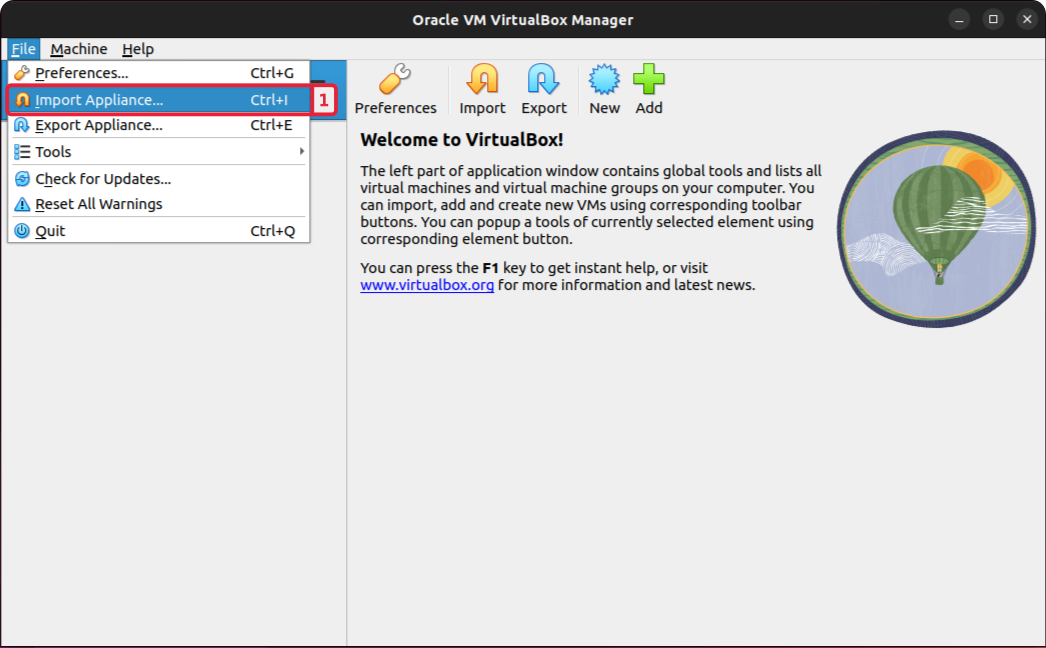
-
Choose the
.ovafile you downloaded and pressFinish.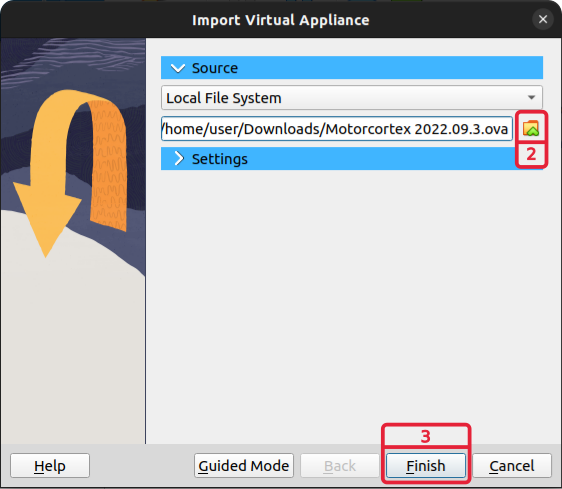
Start the virtual machine
-
In VirtualBox, select the Motorcortex virtual machine and press
Start. It takes a few seconds to start.
-
The console shows the address of the virtual machine next to
eth0, for example192.168.56.111.
-
Log in with the user
adminand the passwordvectioneer.
This address takes the place of controller_ip_addressThe IP address of your controller. In most cases 192.168.2.100. everywhere: in your browser, over SSH and when you deploy packages. Check the connection from a terminal on your PC, with the address from your console:
ssh admin@192.168.56.111
To use a real controller again, switch the host-only network off with sudo ifconfig vboxnet0 down. Switch it back on with sudo ifconfig vboxnet0 up.
The virtual machine does not start: VERR_PATH_NOT_FOUND
VirtualBox can fail to start the machine with this error:
Failed to load the NVRAM store from the file (VERR_PATH_NOT_FOUND).
Can't attach Nvram Storage driver (VERR_PATH_NOT_FOUND).
Result Code:
E_FAIL (0X80004005)
Rename the virtual machine, for example from Motorcortex 2024.01 to Motorcortex 2024, and start it again.
There is no tested procedure for macOS yet. To build a VirtualBox machine from scratch instead of importing the .ova file, see Virtual machine full configuration.
Next: Step 2: connect your PC.