Remote access and file transfer
5 minute read
The controller runs an SSHSecure Shell: an encrypted login to the command line of another computer, on port 22. server. With it you log in to the controller’s command line, for example to restart the application, and you copy files to and from it over SFTPSSH File Transfer Protocol: file transfer over the same encrypted SSH connection, with the same login. . Most tasks in this section start by logging in this way. You can also log in at the controller itself, with a screen and keyboard connected.
What you need
| Setting | Value |
|---|---|
| Host | controller_ip_addressThe IP address of your controller. In most cases 192.168.2.100. |
| Port | 22 |
| User | admin |
| Password | The password of the admin account on your controller. |
The admin account can run commands as administrator with sudo, which asks for the same password.
Log in and transfer files
Log in
-
Open a terminal and type:
ssh admin@controller_ip_address -
The first time,
sshasks whether you trust the controller’s key. Typeyesand press Enter. -
Type the password of the
adminaccount. The terminal shows nothing while you type. -
The prompt changes to the controller’s, for example
mcx-intel:~$. Typeexitto log out.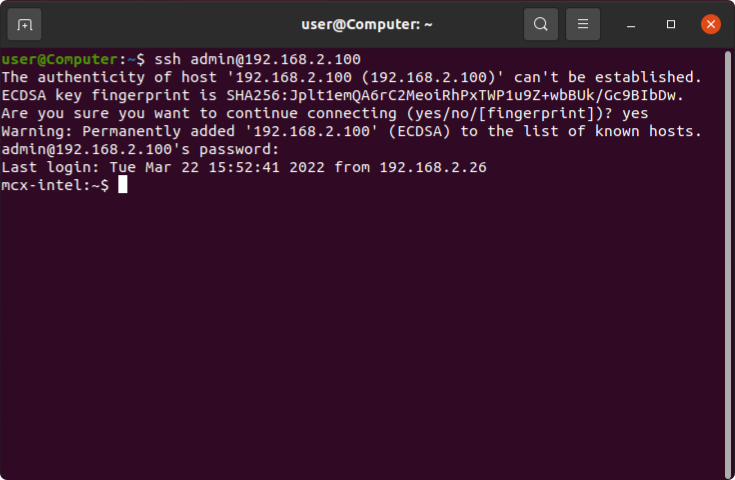
Transfer files
The Ubuntu file manager connects over SFTP itself; you need no extra program.
-
In the file manager, click
Other Locations. -
Under
Connect to Server, typesftp://admin@controller_ip_addressThe IP address of your controller. In most cases 192.168.2.100.. -
Click
Connect.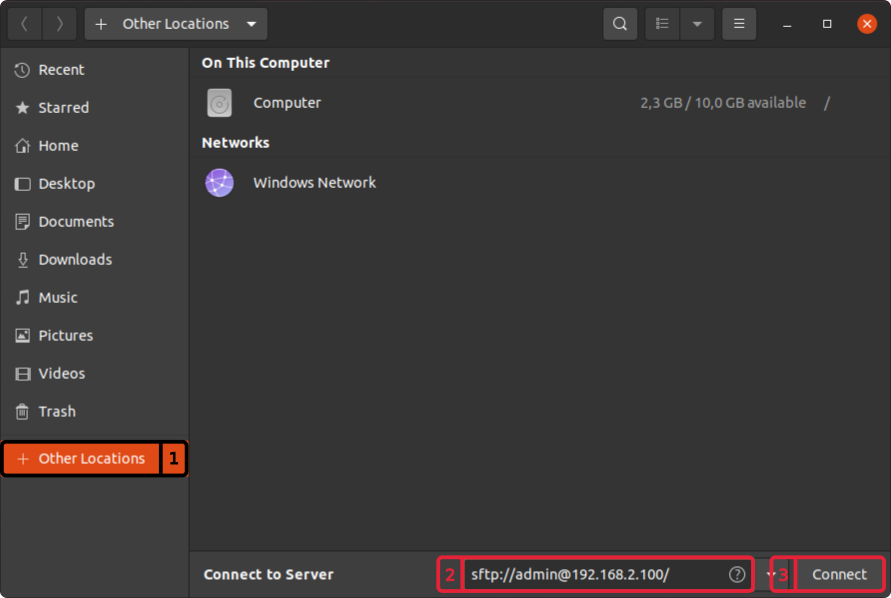
-
Type the password of the
adminaccount and clickUnlock. The controller’s files open like a folder on your PC.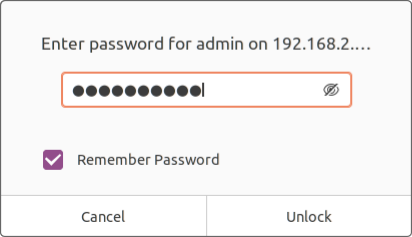
Watch it as a video
Log in
Windows 10 and later have ssh built in. On older Windows, use a separate SSH program such as
PuTTY.
-
Press the Windows key, type
cmdand press Enter. -
Type:
ssh admin@controller_ip_address -
The first time,
sshasks whether you trust the controller’s key. Typeyesand press Enter. -
Type the password of the
adminaccount. The window shows nothing while you type. -
The prompt changes to the controller’s. Type
exitto log out.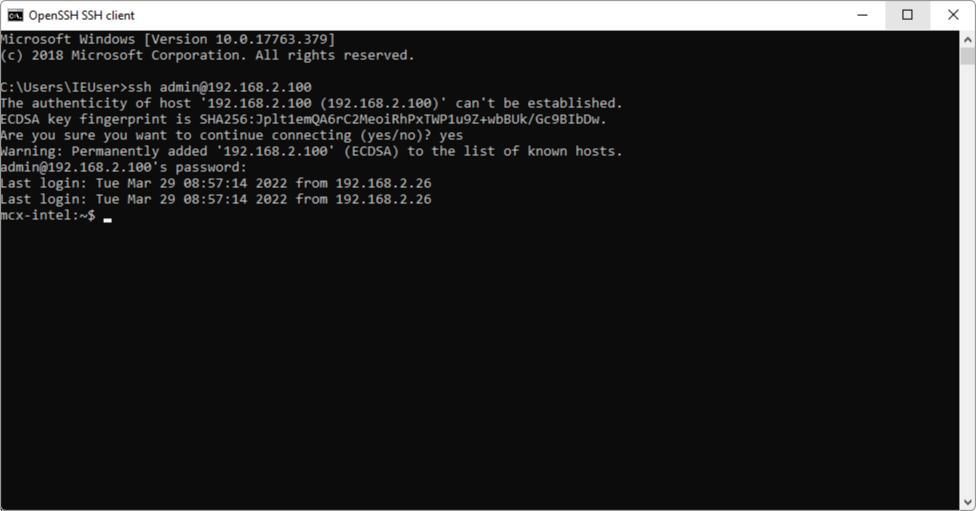
Transfer files
Use an SFTP program, for example FileZilla Client. The numbers in the screenshot match the steps.
-
Download and install
FileZilla Client. -
Open it.
-
In
Host:, typesftp://controller_ip_addressThe IP address of your controller. In most cases 192.168.2.100.. -
In
Username:, typeadmin. -
In
Password:, type the password of theadminaccount. -
In
Port:, type22. -
Click
Quickconnect. The first time, FileZilla asks whether you trust the controller’s key: clickOK.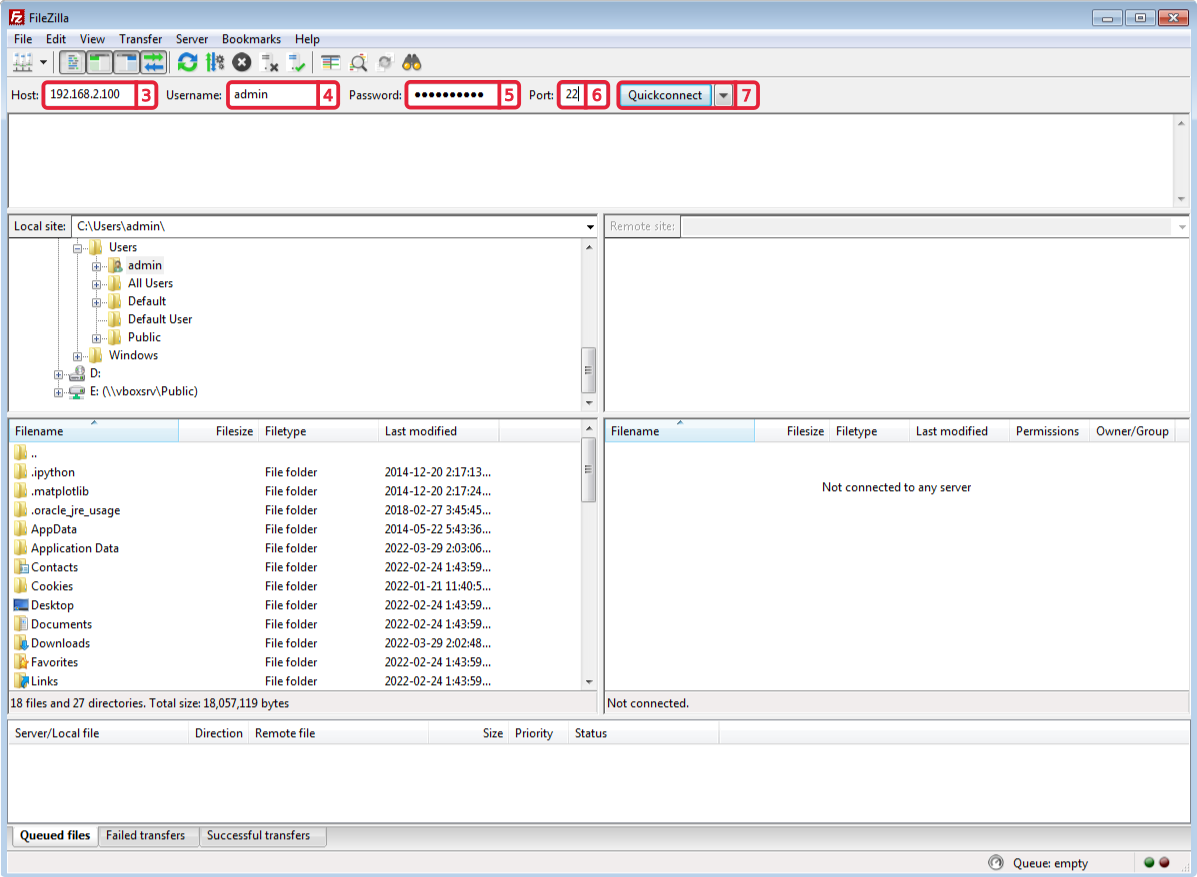
The right-hand side now shows the files on the controller. Drag files between the two sides to copy them.
Log in
-
Open
Terminaland type:ssh admin@controller_ip_address -
The first time,
sshasks whether you trust the controller’s key. Typeyesand press Enter. -
Type the password of the
adminaccount. The terminal shows nothing while you type. -
The prompt changes to the controller’s. Type
exitto log out.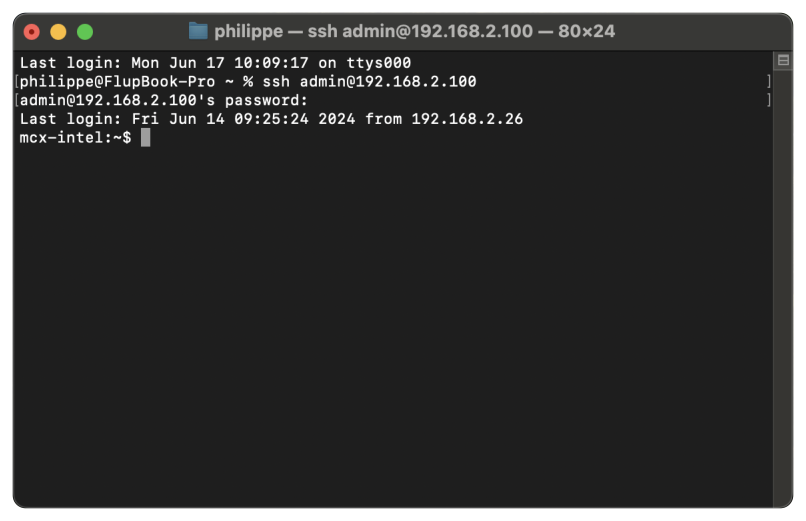
Transfer files
Use an SFTP program, for example FileZilla Client.
-
Download and install
FileZilla Client. -
Open it.
-
In
Host:, typesftp://controller_ip_addressThe IP address of your controller. In most cases 192.168.2.100.. -
In
Username:, typeadmin. -
In
Password:, type the password of theadminaccount. -
In
Port:, type22. -
Click
Quickconnect.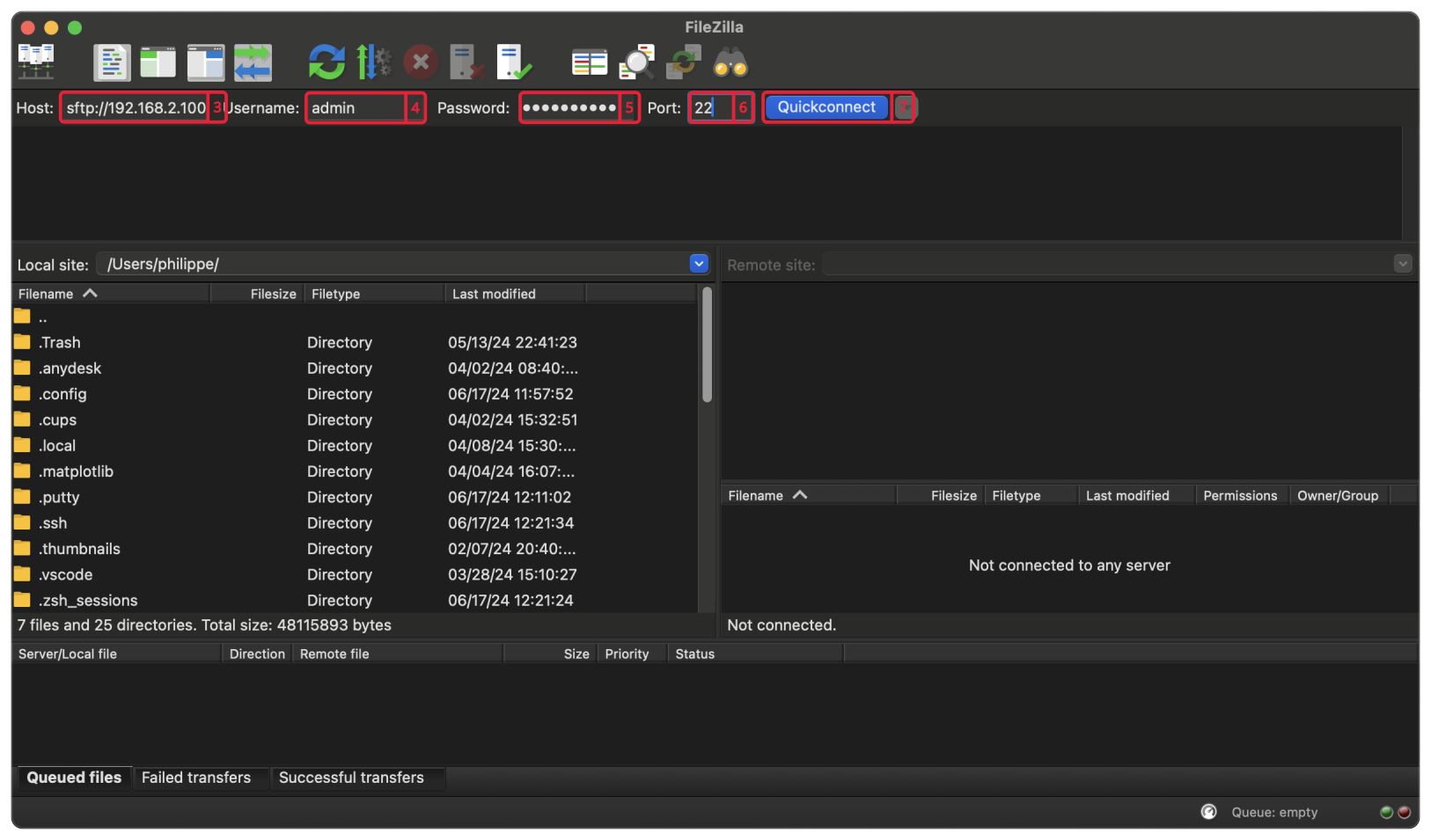
-
The first time, FileZilla asks whether you trust the controller’s key. Click
OK.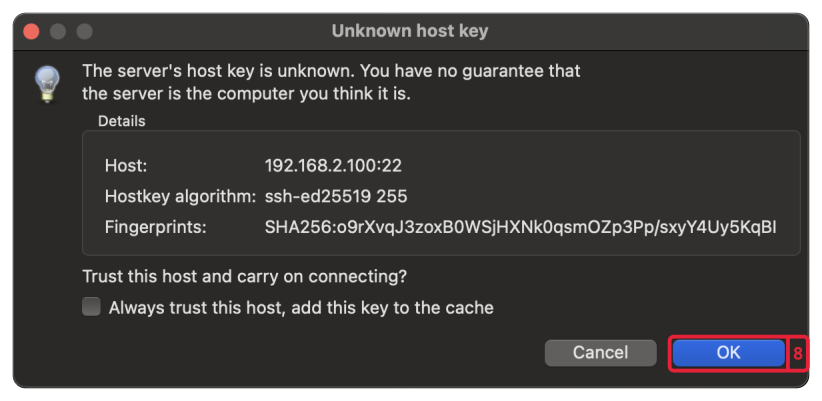
The right-hand side now shows the files on the controller. Drag files between the two sides to copy them.
Host key warning
The first time you log in, your PC stores the controller’s host key: a fingerprint that proves it is the same controller next time. When the key changes, ssh refuses to connect and shows WARNING: REMOTE HOST IDENTIFICATION HAS CHANGED!. That happens after you reinstall MCX-RTOS, or when another controller takes the same address.
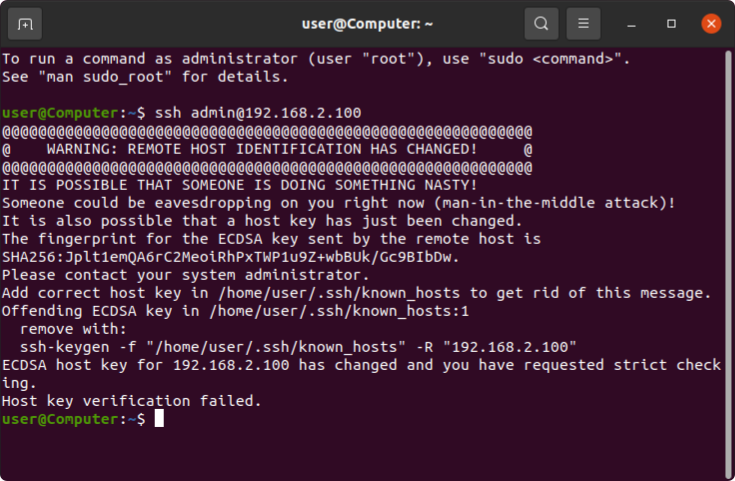
When you know why the key changed, remove the old key from your PC and log in again. The command is the same on Ubuntu, Windows and macOS:
ssh-keygen -R controller_ip_address
ssh admin@controller_ip_address
ssh then asks you to accept the new key, as on the first login.
Log in without a password
On a Linux PC you can copy your public key to the controller, so that ssh no longer asks for the password. This assumes your public key is in ~/.ssh/id_rsa.pub:
ssh-copy-id -i ~/.ssh/id_rsa.pub admin@controller_ip_address
You type the password of the admin account once, to copy the key. After that, logging in no longer asks for it.