VS Code
7 minute read
The Motorcortex VS Code extension drives a Motorcortex Target from inside Visual Studio Code. It starts and stops the Motorcortex service, scaffolds Python client and C++ control applications, manages cross-compilation toolchains, and builds and deploys packages.
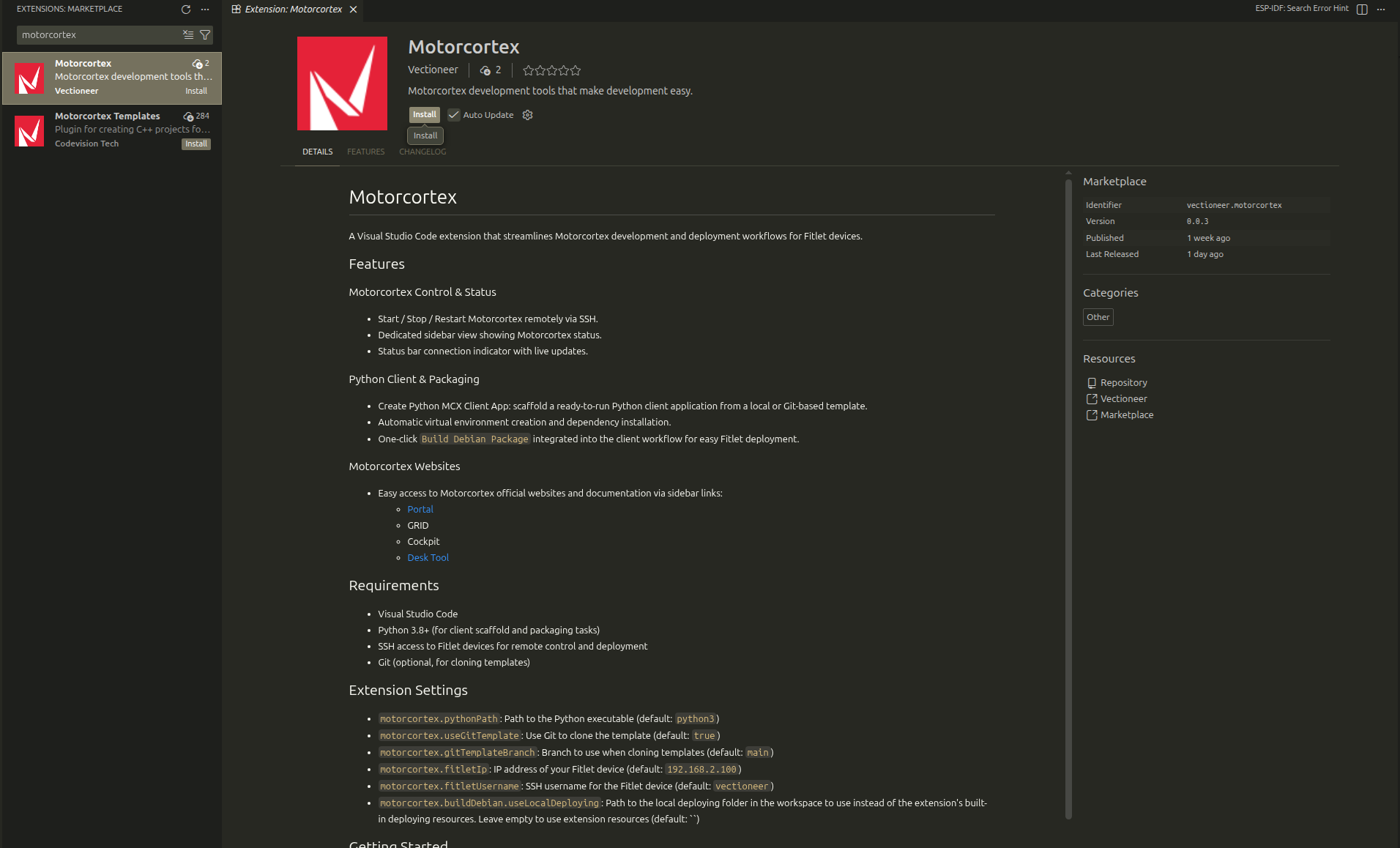
Read the Install tab first. Features and Settings describe the extension once it is installed and pointed at a target.
Install the extension from the Marketplace, then point it at your Motorcortex Target device.
Prerequisites
- Visual Studio Code 1.100 or later on your development machine.
- Python 3.8 or later, for the client scaffold and packaging tasks.
- SSH access to a Motorcortex Target device, for remote control and deployment. See Connect your PC.
- Git, optional, for cloning templates.
Install the extension
-
Open Visual Studio Code.
-
Open the Extensions view: click the Extensions icon in the Activity Bar, or press
Ctrl+Shift+X(Windows/Linux) orCmd+Shift+X(Mac). -
Type
Motorcortexin the search bar. -
Click Install on the Motorcortex extension published by Vectioneer.
-
Reload VS Code if prompted, to activate the extension.
The extension depends on the Remote Development extension pack, which VS Code installs alongside it.
If VS Code is signed in to your Microsoft account, you can also install the extension straight from the Visual Studio Code Marketplace.
Point the extension at your target
-
Open the Motorcortex view in the sidebar and click the settings icon at the top right, or press
Ctrl+Shift+Pand runMotorcortex: Open Settings. -
Set the address of your Motorcortex Target device:
motorcortex.targetIp— the IP address or hostname of the target,controller_ip_addressThe IP address of your controller. In most cases 192.168.2.100..motorcortex.targetUsername— the SSH username on the target. Defaultadmin.
-
Set up key-based SSH access to the target, which the extension needs for every remote operation. In the Control section of the Motorcortex view, click the Setup ssh key connection button next to the connection status, or run
Motorcortex: Setup Target SSH Key Authenticationfrom the Command Palette.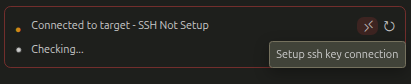
The Control section and the status bar now report the state of the Motorcortex service on the configured target.
The Motorcortex VS Code extension integrates tooling, debugging and Motorcortex-specific helpers into Visual Studio Code, so development and system interaction happen in one place. It adds a Motorcortex view to the sidebar, a service indicator to the status bar, and a set of commands to the Command Palette.
What the extension does
- Reports whether the Motorcortex service on the target is running.
- Starts, stops and restarts the Motorcortex service from within VS Code.
- Opens an SSH terminal on the target.
- Scaffolds a ready-to-run Python MCX Client application from the template built into the extension.
- Builds a Debian package from the Python MCX Client application for deployment.
- Scaffolds a ready-to-run C++ MCX Control application, and individual C++ control modules, from templates.
- Manages cross-compilation toolchains: installs an SDK, selects the active one, and switches between them.
- Builds, runs and debugs MCX Control applications, locally or on the target.
- Streams
mcx-lastlogfrom the target into a panel in the sidebar. - Fetches the configuration active on the target into your workspace, and deploys a configuration back to it.
- Links to the Motorcortex web tools: Portal, Cockpit, Grid, Ethercat, Motorcortex Desk, the documentation and support.
Side bar
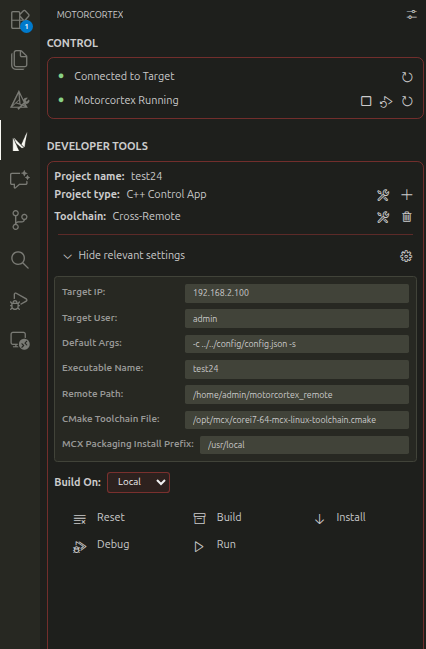
Click the Motorcortex icon in the Activity Bar to open the Motorcortex view. It has three sections:
- Control: the reachability of the target and the state of the Motorcortex service, with buttons to start, stop and restart the service, open an SSH terminal on the target, set up SSH key authentication, and refresh the status.
- Developer tools: the detected project and its type, and the buttons for working on it. Here you scaffold a Python MCX Client or C++ MCX Control application, or mark the current folder as one; select and install cross-compilation toolchains; choose whether to build locally or on the target; and build, install, run and debug. For a Python client the section offers the Debian package build; for a C++ control application it adds an
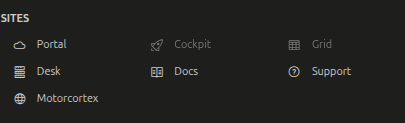
MCX-LASTLOGpanel that streams the log from the target, and a Build Guide behind the info button. Both project types can fetch the configuration that is active on the target. - Sites: links to Portal, Cockpit, Grid, Ethercat, Motorcortex Desk, the documentation, support and the Motorcortex website.
Status bar
The status bar at the bottom of VS Code shows the state of the Motorcortex service on the target. The text and colour change with the state, and clicking the indicator refreshes it.
Next to the indicator are buttons to start, stop and restart the service. Start is visible when the service is not running; Stop and Restart are visible when it is running.
Not running

Running

Available commands
To see every command the extension provides, open the Command Palette with Ctrl+Shift+P (Windows/Linux) or Cmd+Shift+P (Mac) and type Motorcortex.
Two commands are also available from the Explorer context menu: Motorcortex: Create C++ MCX Control Module on a folder or a C++ file, and Motorcortex: Deploy on a configuration folder.
Where to find more information
- Official website: Motorcortex.io
- Marketplace listing: VS Code Marketplace
- Questions about configuring VS Code for a specific task: support forum
The extension contributes the settings below. Set them in the VS Code settings UI, in settings.json, or through the relevant settings panel in the Motorcortex view.
Target and status
| Setting | Type | Default | Description |
|---|---|---|---|
motorcortex.targetIp |
string | controller_ip_addressThe IP address of your controller. In most cases 192.168.2.100. |
IP address of the Motorcortex Target device. |
motorcortex.targetUsername |
string | admin |
SSH username for the Motorcortex Target device. |
motorcortex.statusCheckInterval |
number | 10000 |
Interval in milliseconds between status checks (default: 10000ms/10s). Increase this if you experience SSH connection issues. Accepts 5000 to 300000. |
motorcortex.enableStatusPolling |
boolean | true |
Enable automatic status polling of the Motorcortex service. Disable if you prefer manual status checks only. |
motorcortex.private_key_path |
string | ~/.ssh/id_rsa_motorcortex |
Path to the private SSH key used for authenticating with the Motorcortex Target device. |
motorcortex.dockerPath |
string | docker |
Path to the Docker executable. Set this if Docker is not in your PATH or is installed in a non-standard location. Example: /usr/bin/docker or C:/Program Files/Docker/Docker/resources/bin/docker.exe. |
C++ control applications
| Setting | Type | Default | Description |
|---|---|---|---|
motorcortex.cpp.executable_name |
string | motorcortex_control_app |
Name of the executable for the remote C++ Motorcortex Control Application. |
motorcortex.cpp.crossRemoteToolchain.remote_path |
string | /home/admin/motorcortex_remote |
Remote path on the Motorcortex Target device what the cross-remote toolchain can use. |
motorcortex.cpp.default_args |
string | -c ../../config/config.json -s |
Default arguments to pass to the C++ Motorcortex Control Application when running. |
motorcortex.cpp.additional_cmake_args |
string | (empty) | Additional CMake arguments to pass during configuration (e.g., -DCUSTOM_FLAG=ON -DANOTHER_OPTION=value). |
motorcortex.cpp.cmake_toolchain_path |
string | corei7-64-mcx-linux-toolchain.cmake |
Path to the CMake toolchain file for cross-compiling C++ Motorcortex Control Applications. |
motorcortex.cpp.mcx_packaging_install_prefix |
string | /usr/local |
Path prefix for installing MCX Packaging on the Motorcortex Target device. |
motorcortex.cpp.toolchain_base_path |
string | ~/.local/motorcortex-toolchains |
Base directory where multiple toolchains are installed. Each toolchain should be in its own subfolder (e.g., ~/MCX-CrossRemote-Toolchains/mcx-sdk-2025-03-01, ~/MCX-CrossRemote-Toolchains/mcx-sdk-2025-03-37). |
motorcortex.cpp.environment_setup_path |
string | (empty) | Path to the SDK environment setup script (e.g., /opt/mcx-rtos/sdk-name/environment-setup-corei7-64-mcx-linux). This is auto-detected during toolchain setup. |
Python client applications
| Setting | Type | Default | Description |
|---|---|---|---|
motorcortex.python.executable |
string | python3 |
Python executable to use for installing dependencies (e.g., python3, python, or path to specific interpreter). |
motorcortex.python.venv_path |
string | .venv |
Path to the Python virtual environment relative to the workspace root. |
motorcortex.python.requirements_file |
string | requirements.txt |
Path to the requirements file relative to the workspace root. |
motorcortex.python.package_config_path |
string | package_config.json |
Path to the Motorcortex Client App package configuration file relative to the workspace root. |
Settings without a UI entry
Two settings are read by the extension but are not contributed to the settings UI. Add them to settings.json by hand.
| Setting | Type | Default | Description |
|---|---|---|---|
motorcortex.python.useLocalDeploying |
string | (empty) | Path to a deploying folder in the workspace to use instead of the extension’s built-in resources. The folder holds makeDeb.py, template.service.in, default_package_config.json and app.Dockerfile. Leave empty to use the extension’s own resources. |
motorcortex.cpp.crossRemoteToolchain.sdk_installer_path |
string | (empty) | Path to the Motorcortex SDK installer (.sh) used for toolchain setup. Leave empty to be prompted each time. |