Workspace
3 minute read
Desk is a dockable workspace: every part of the UI is a panel that can be re-tabbed, split, resized, floated, popped out into its own window, or closed. The layout is stored in the browser and restored on your next visit.
If you are here to get a signal on screen, start with Connecting and then Plotting; each opens with a worked example. This page is about the frame around them.
Panels
| Panel | Purpose |
|---|---|
| Connection | Connect to a controller, see the connection state |
| Replay | Load a prerecorded CSV file instead of a live connection |
| Parameters | Browse, search, write and lock controller parameters |
| Plot | The real-time plot. Always present, cannot be closed |
| Active | The signals currently plotted: colour, axis, visibility, lock; and custom signals |
| View | Framing and playback, overlays, legend, X-axis time base and trace style |
| Measure | Point pairs and deltas |
| Statistics | Mean, spread and extremes over a time range |
| Spectrum | Frequency content of one trace, opened from a Statistics card |
| Export | CSV range export and continuous recording |
| Settings | Theme, renderer and plot appearance |
| Docs | This documentation, opened inside the app |
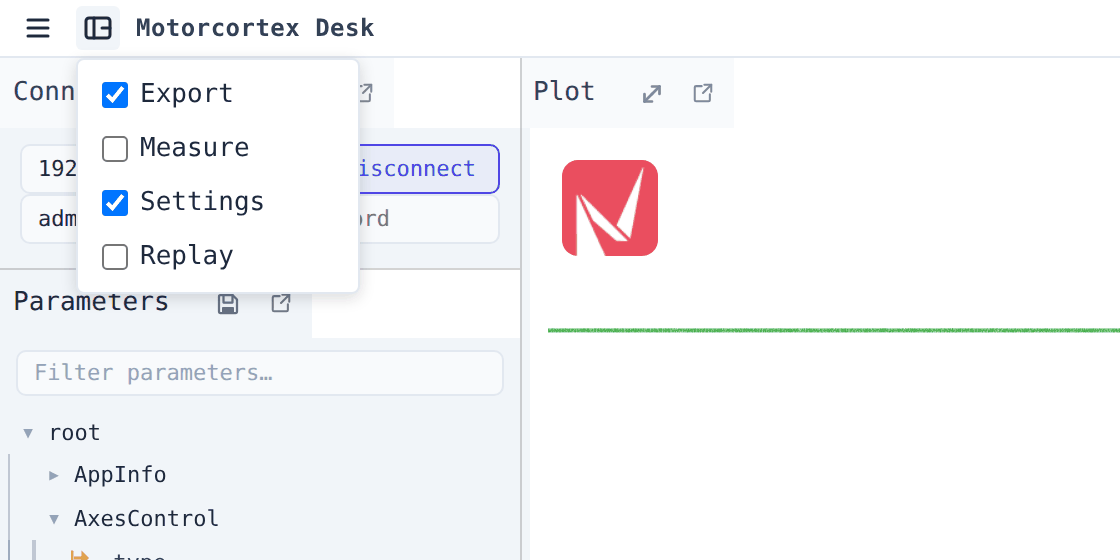
By default Desk opens with Connection, Parameters, Plot, View, Statistics, Export, Active and Settings visible. Measure and Replay start hidden; switch them on in the View menu. Spectrum and Docs appear when something opens them and are closed like any other tab.
Rearranging panels
- Drag a tab onto another group to re-tab it, or onto an edge to split the layout.
- Drop a tab away from any dock target to leave the panel floating over the workspace.
- Click the ⧉ button in a tab to pop the panel out into a separate browser window, useful on a second monitor. The popped-out window has a Dock panel back button to return it.
- Click the ⤢ button in the Plot tab, or press Ctrl+M, to maximize the plot over the whole workspace; again to restore.
- Drag the divider between two groups to resize them.
Top bar

| Control | What it does |
|---|---|
| ☰ App menu | Reset view (restore the default layout), Save layout… / Load layout…, and Info |
| ▤ View menu | Show or hide the optional panels |
| ℹ Docs | Open this documentation in a panel |
| Motorcortex AI badge | Appears when an AI assistant is driving this tab; see below |
| ⛶ Fullscreen | Toggle browser fullscreen |
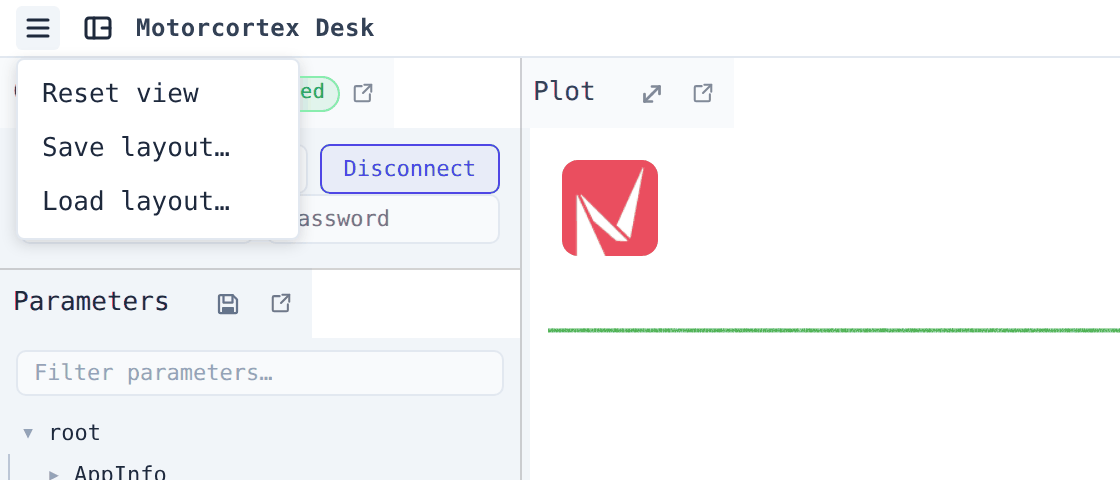
Reset view and Ctrl+Shift+R both return the workspace to the factory layout, including which panels are hidden.
Save layout… opens the browser’s Save dialog so the file lands where you choose, and puts the layout on the clipboard as well; the toast says so.
Motorcortex AI badge
Desk can be driven by an AI assistant over its built-in bridge. The badge appears while a bridge session is attached to this tab, and dims when the assistant has moved to another tab. Clicking the dimmed badge takes the bridge back over to this one. Only one tab owns the bridge at a time.