VS Code Installation
2 minute read
Prerequisites
- Visual Studio Code installed on your development machine.
- Python 3.8+ (required for client scaffold and packaging tasks)
- SSH access to Fitlet devices with Motorcortex for remote control and deployment. See Connect your pc for instructions.
- Git (optional, for cloning templates)
To install the Motorcortex VS Code extension, follow these steps:
-
Open Visual Studio Code.
-
Go to the Extensions view by clicking on the Extensions icon in the Activity Bar on the side of the window or by pressing
Ctrl+Shift+X(Windows/Linux) orCmd+Shift+X(Mac). -
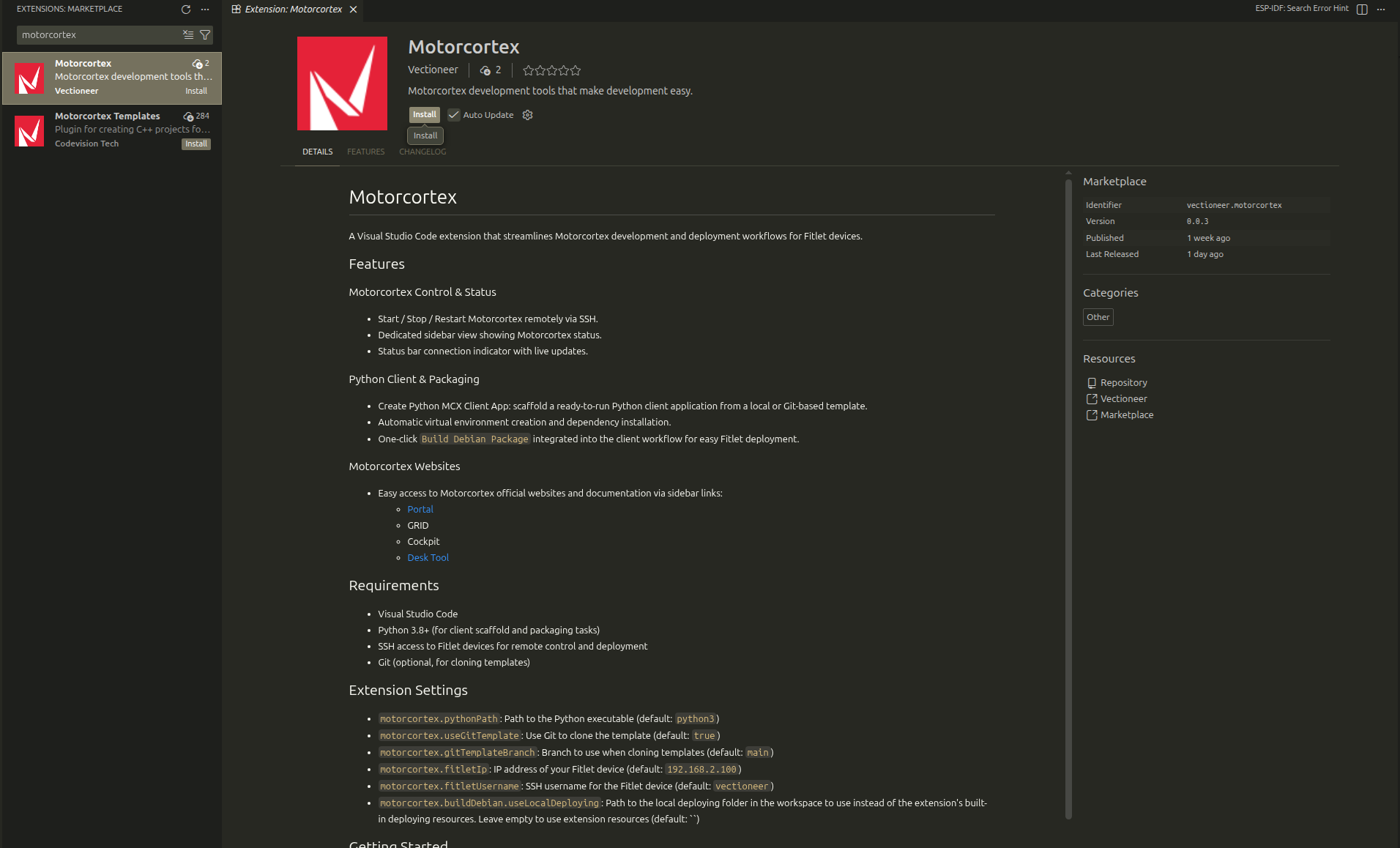
In the search bar, type
Motorcortexto find the Motorcortex extension. -
Click on the
Installbutton next to the Motorcortex extension in the search results. -
Once installed, you may need to reload VS Code to activate the extension. Click the
Reloadbutton if prompted. s If your VSCode is connected to your Microsoft account, you can also install it directly from the Visual Studio Code Marketplace.
To setup the extension after installation, follow the instructions:
-
Open the Motorcortex extension in the sidebar and click on
Open Settings(top right -> Menu Icon) or pressctrl+shift+pand run the commandMotorcortex: Open Settings. -
Configure the settings according to your Fitlet device and Motorcortex installation. Key settings include:
- fitletIp: The IP address or hostname of your Fitlet device.
- fitletUsername: The SSH username for accessing the Fitlet device.
-
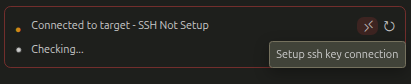
In the Motorcortex extension view, use the
Setup SSH Key Connectionutility to set up SSH access to your Fitlet device. This step is crucial for the extension to interact with the Motorcortex system seamlessly. (The utility can also be run viactrl+shift+pand searching forMotorcortex: Setup SSH Key Authentication)