Install Browser Certificate On Ubuntu
3 minute read
On Ubuntu browser certificates have to be installed on every separate browser. please select the browser that you will be using.
Select your browser:
The following steps show how to install the Motorcortex Encryption Certificate for Google Chrome.
-
Search for
chrome://certificate-manager/in the address bar of your Chrome browser. -
In the
Certificate Managergo to theLocal certicatestab.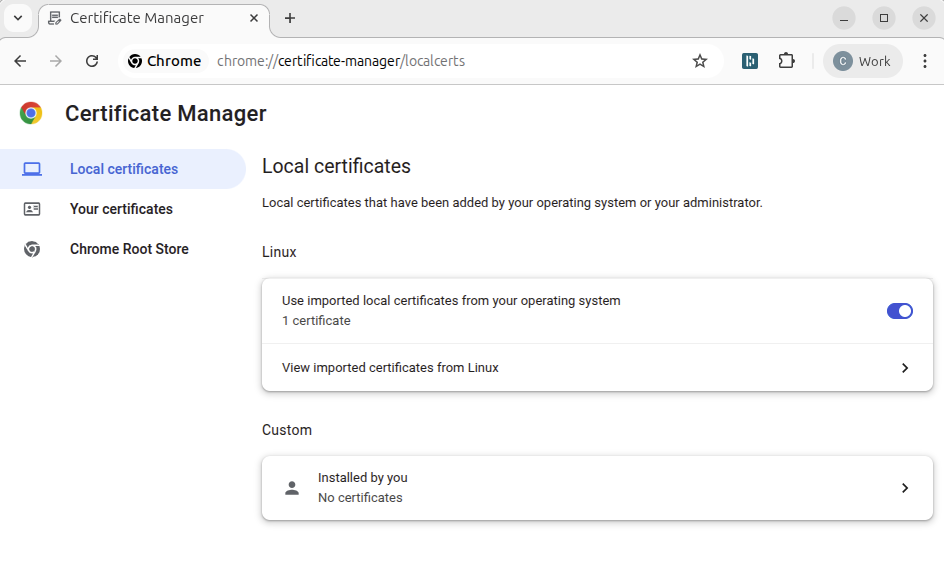
-
Click on
Installed by youand then click on theImportbutton forTrusted Certificates. (The import button is on top) -
Select the
mcx.cert.crtthat you have downloaded by pressing the download button on the top of this page. -
After importing the certificate, you should see
Motorcortex Root CAin the list ofTrusted Certificates.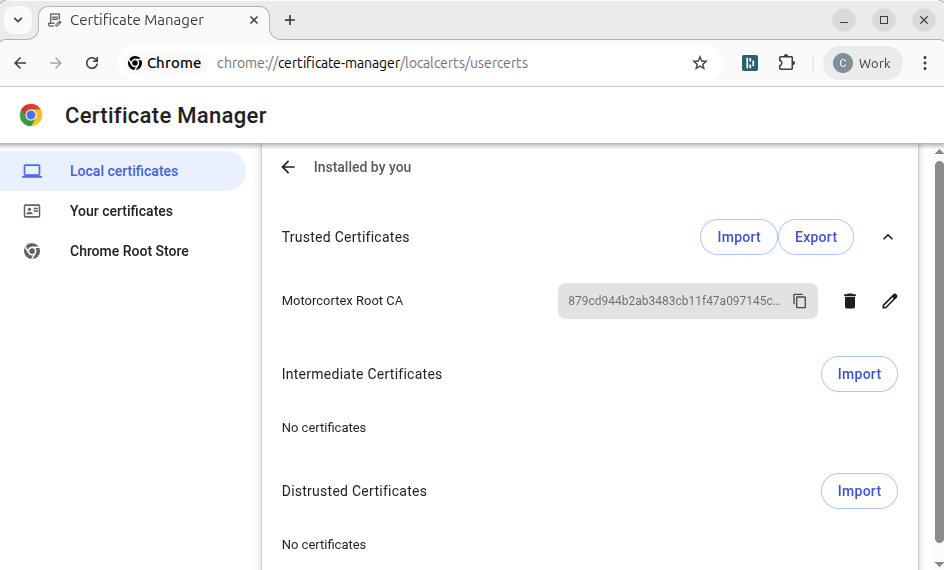
-
The certificate is now installed.
Testing the Certificate
Open your browser and type in your controller IP: 192.168.2.100. (Default IP, change if necessary)
Correct Certificate
Your Certificate is correct after you get the Motorcortex screen.
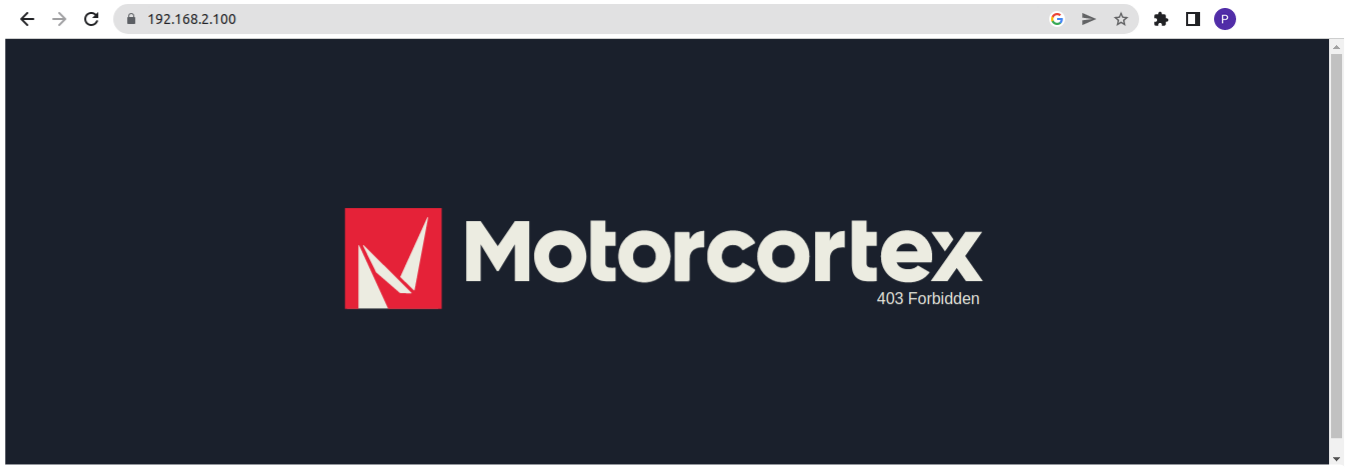
Congratulations you have installed your Motorcortex Certificate.
Incorrect Certificate
Your Certificate is incorrect after you get the following screen with the message NET::ERR_CERT_AUTHORITY_INVALID.
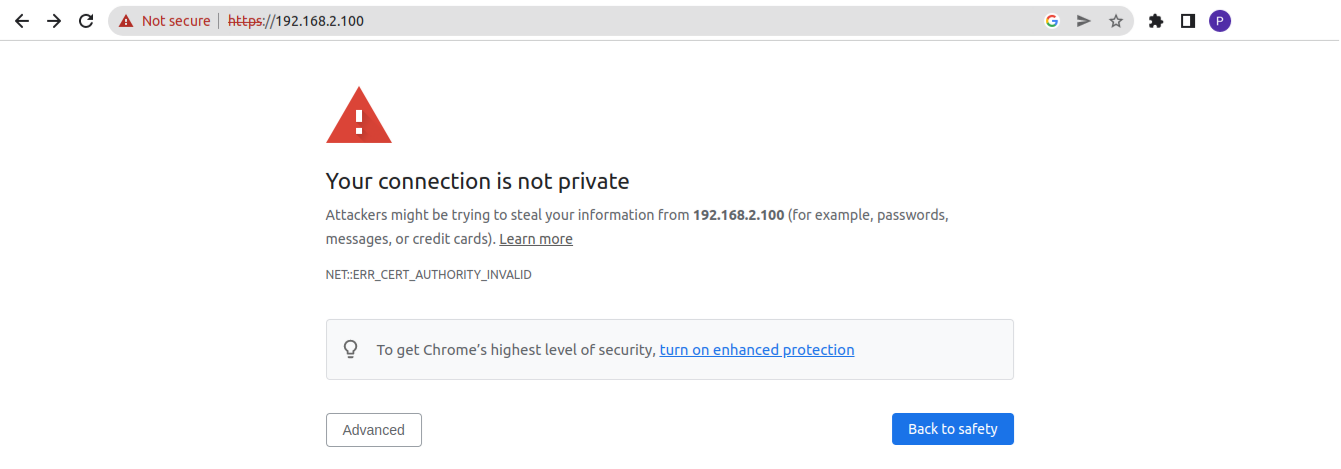
You did something wrong while importing the certificate to you browser.
The following steps show how to install the Motorcortex Encryption Certificate for Mozilla Firefox.
-
Open vertical menu on top right corner of your browser.
-
Open
Settingsmenu.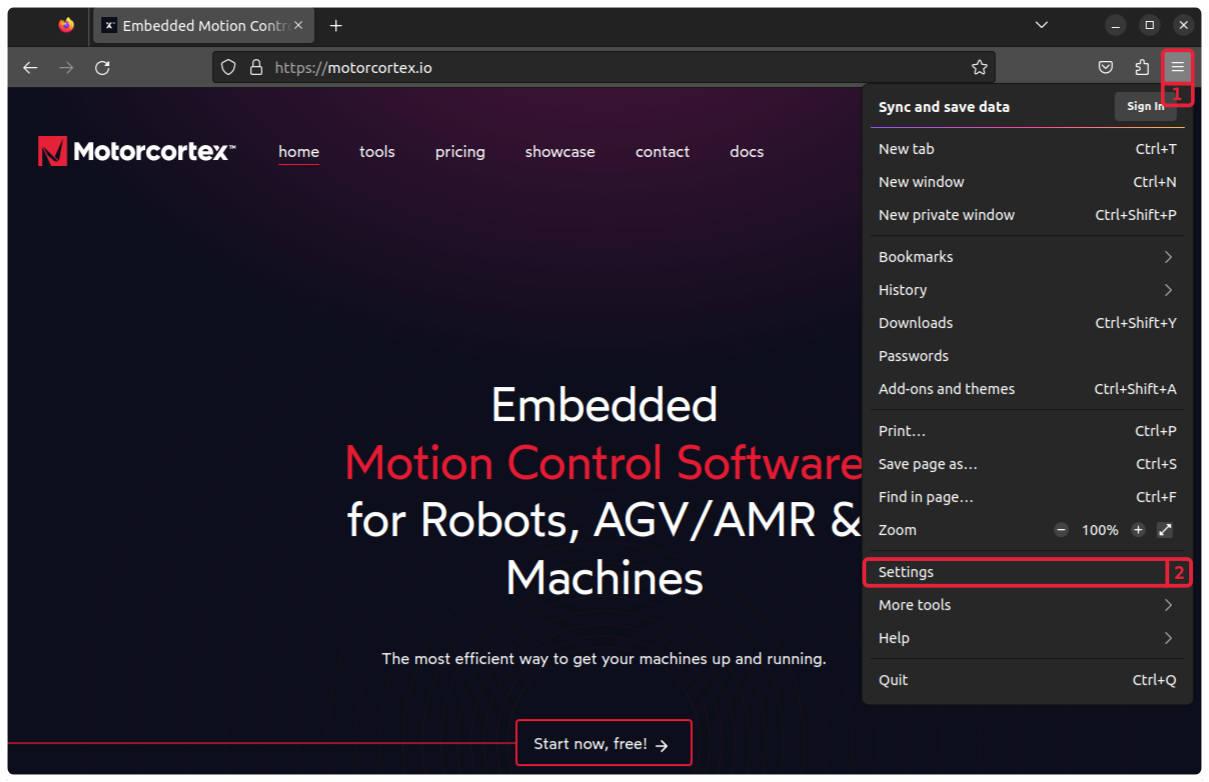
-
In the
Settingsgo to thePrivacy and Security -
Scroll down to the
Securitysection. now clickView Certificates....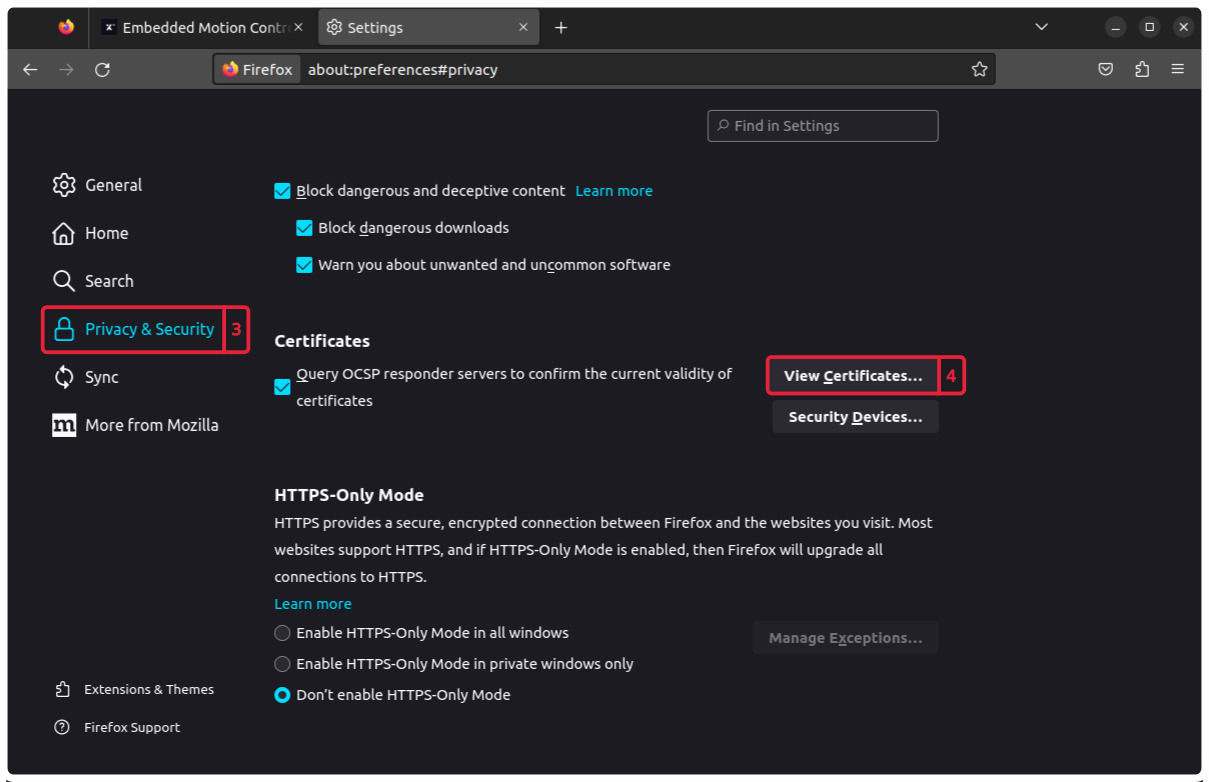
-
In the
Certificate Managerpop-up go to theAuthorities -
Click on the
Import...button.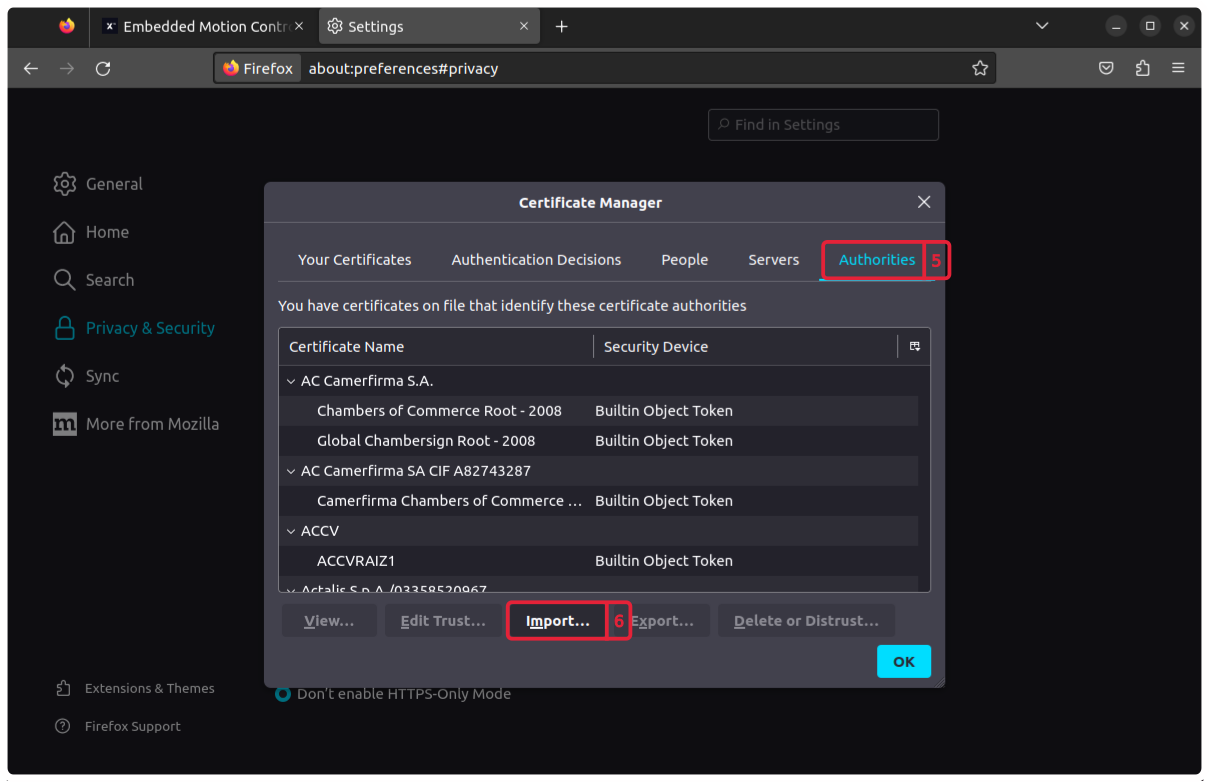
-
Browse to and open the
mcx.cert.crtthat you have downloaded. -
Next you will receive a
Downloading Certificatepop-up checkTrust this CA to identify websites -
Press
OK.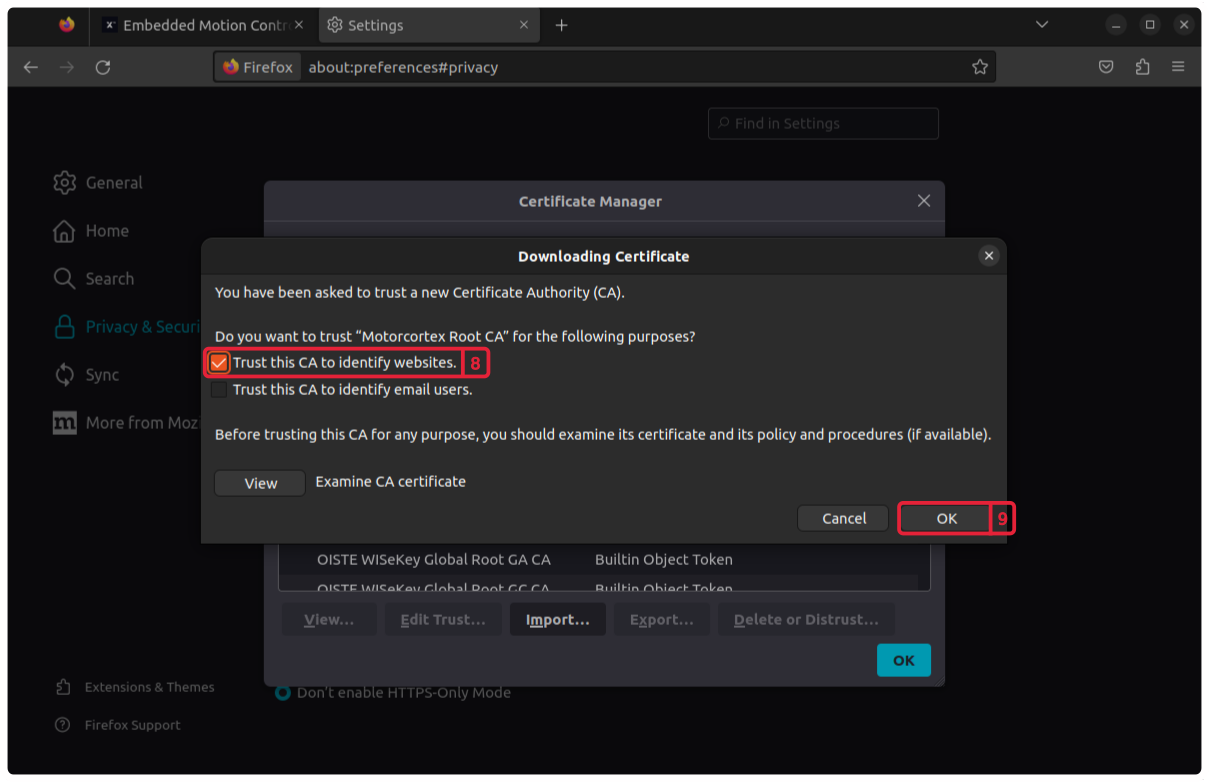
Testing the Certificate
Open your browser and type in your controller IP: 192.168.2.100.
Correct Certificate
Your Certificate is correct after you get the Motorcortex screen.
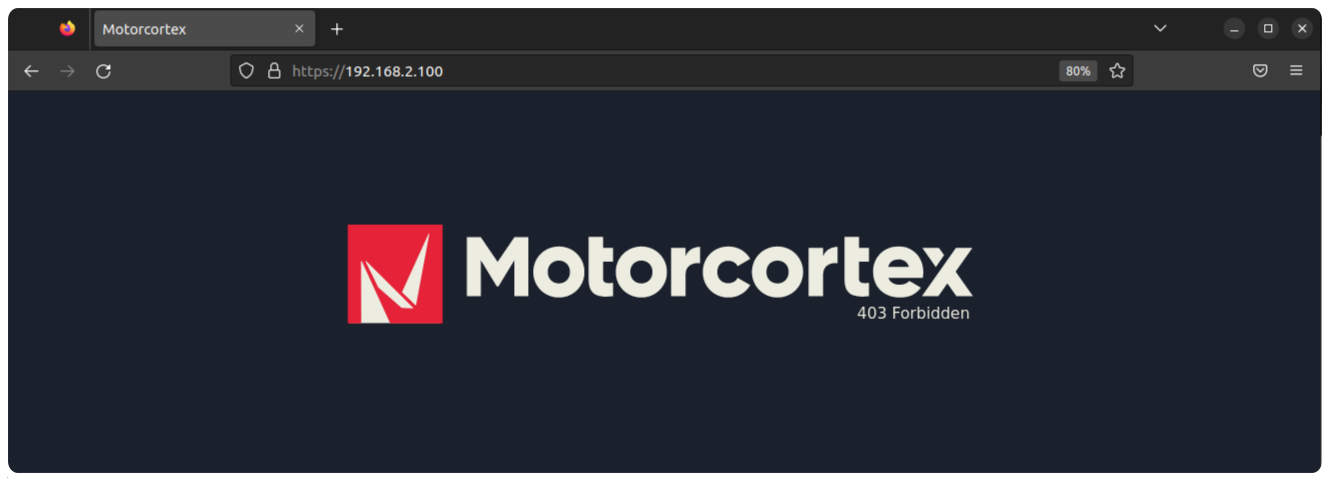
Congratulations you have installed your Motorcortex Certificate.
Incorrect Certificate
Your Certificate is incorrect after you get the following screen with the message NET::ERR_CERT_AUTHORITY_INVALID.
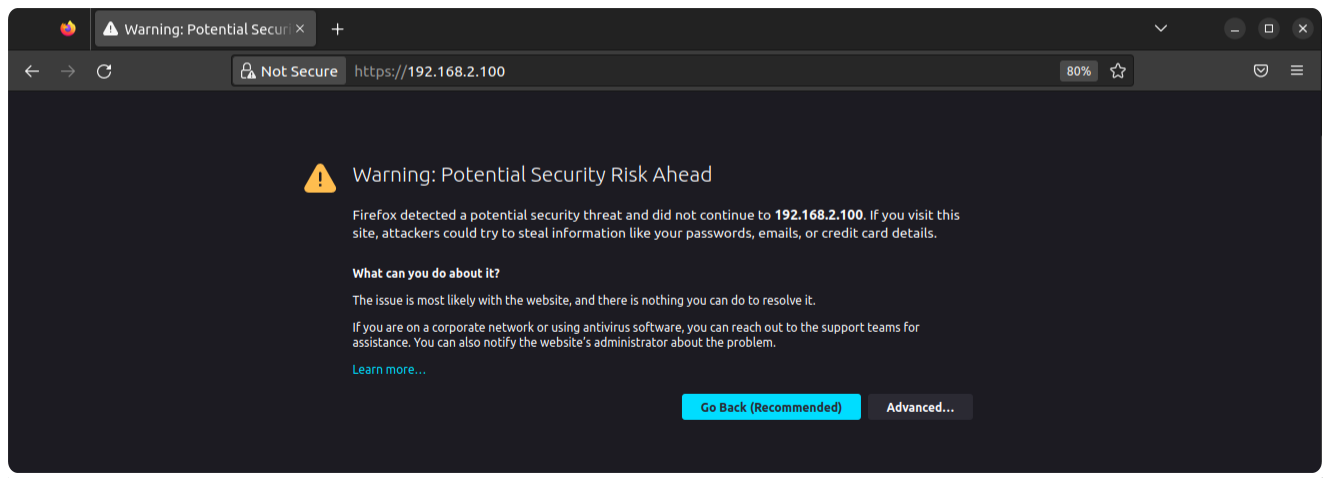
You did something wrong while importing the certificate to you browser, check if the Certificate is added to the list of Authorities:
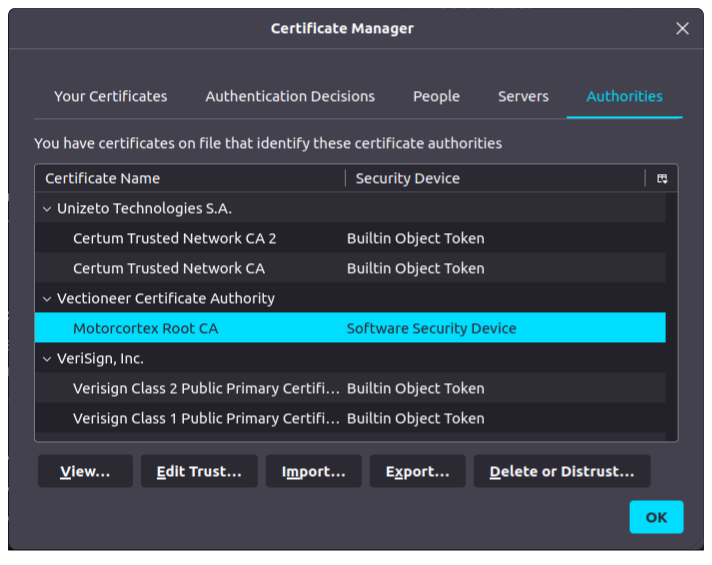
If you are unable to find the org-Vectioneer Certificate Authority, Motorcortex Root CA, please perform the step Install a Browser Certificate again.